Chrome has no built-in website blocker for an ordinary account. Google’s own blocking is for children on a supervised account (Family Link) and for computers an organization manages. For everyone else there are two ways in: a website blocker extension, or an app that blocks sites in every browser. Here is how each works on Windows, Mac and Android, and what each one can’t do.
The short answer
- To block a site on your own computer for free, use an extension such as LeechBlock NG or StayFocusd.
- To block sites for your child, use Family Link.
- To block sites in Chrome and every other browser, on a schedule, use a desktop blocker such as FocusMe.
1. Use a website blocker extension
- Open the Chrome Web Store and search for a blocker. LeechBlock NG and StayFocusd are free.
- Click Add to Chrome.
- Open the extension’s options and add the sites you want blocked, for example youtube.com or reddit.com.
- Set when the block applies: all the time, on a schedule or after a daily time limit.
- Go to
chrome://extensions, click Details under the blocker and turn on Allow in incognito. Otherwise the block doesn’t apply in incognito windows.
The catch: any extension can be turned off or removed from chrome://extensions in a couple of clicks, and it only covers Chrome. Edge, Firefox, Safari and the Chrome app on your phone are outside it. If that’s enough for you, stop here. If the extension keeps getting switched off at 11 p.m., read on.
2. Block sites for a child with Family Link
Family Link is Google’s free parental control for supervised child accounts.
- Open the Family Link app and select your child.
- Tap Controls, then Google Chrome and Web.
- Choose Try to block explicit sites or Only allow approved sites.
- To block or allow particular sites, go to Manage sites, tap Approved sites or Blocked sites, then Add a website.
It is built for Android phones and Chromebooks. On a Windows PC or Mac it only applies while your child is signed in to Chrome with their own account: Google notes that they can sign out of Chrome and switch to another profile, and may have other browsers where the settings don’t apply. Incognito mode is turned off while a child is signed in with a supervised account.
For more on keeping a child’s computer time in check, see FocusMe for parents and how to set computer time limits for kids.
FocusMe
FocusMe blocks Websites on your computer and phone on the schedule you set.
Try it free for 14 days3. Block sites on work or school computers
Organizations block sites in Chrome with a browser policy set by their IT admin. It isn’t meant for self-control: it needs admin rights, and whoever set it can take it off. If you run computers for a school or a team, see FocusMe for schools and FocusMe for employees.
4. Block websites in Chrome and every other browser with FocusMe
FocusMe is a website and app blocker for Windows, Mac and Linux, so the block isn’t tied to one browser. Close Chrome and open Edge, and the same sites are still blocked.
- Download FocusMe and start the 14-day free trial. No card needed.
- Open the Plans tab, click Add a Plan and name it.
- On What to block, type each site and click Add, or click a ready-made list such as Social Media or News.
- Click Next. On When it runs, choose a Quick Timer for now, or a Weekly Schedule such as 9 to 5 on weekdays. To limit a site rather than block it, set the mode to Time Limit, for example 30 minutes of YouTube a day.
- Click Next, pick how strict, and click Create & Enable.
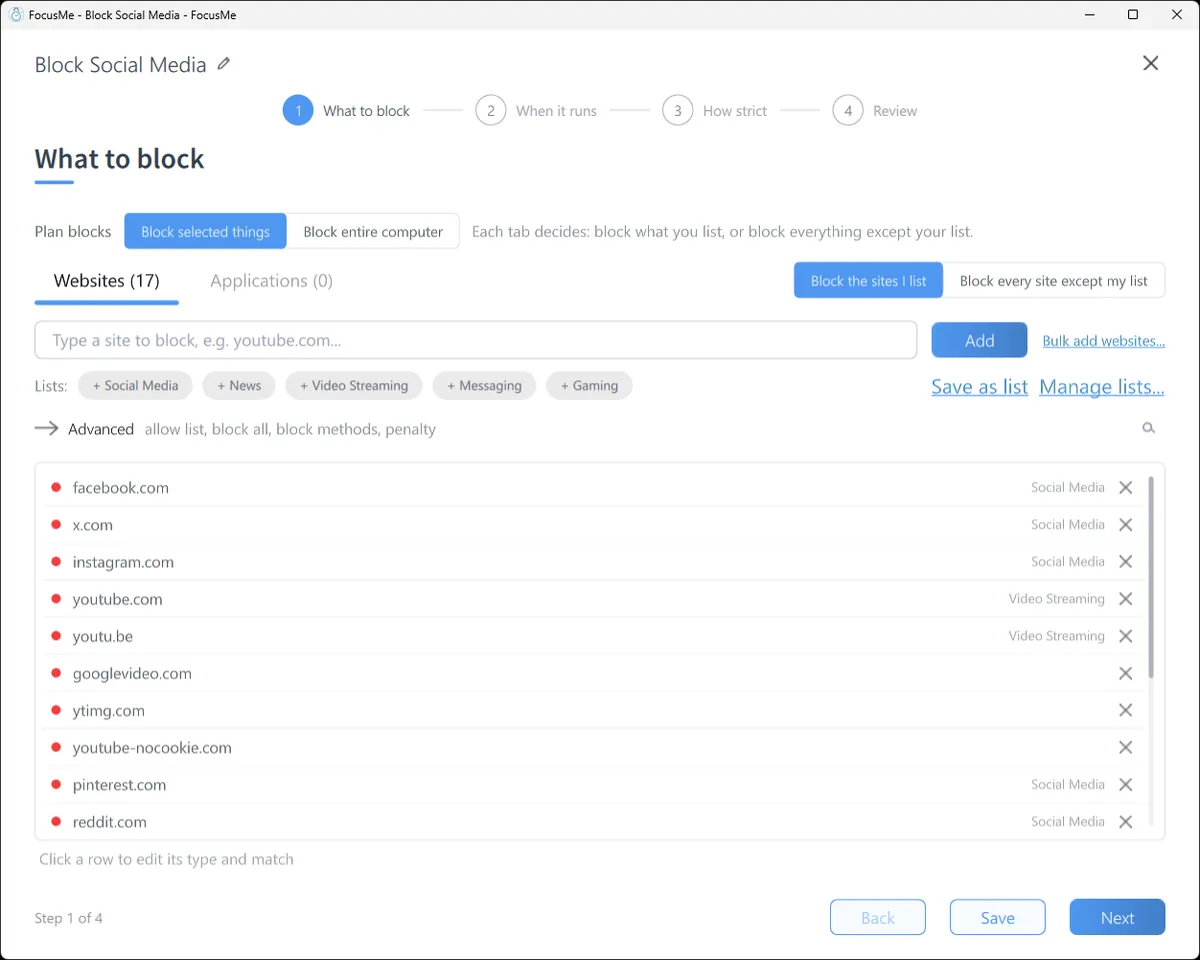
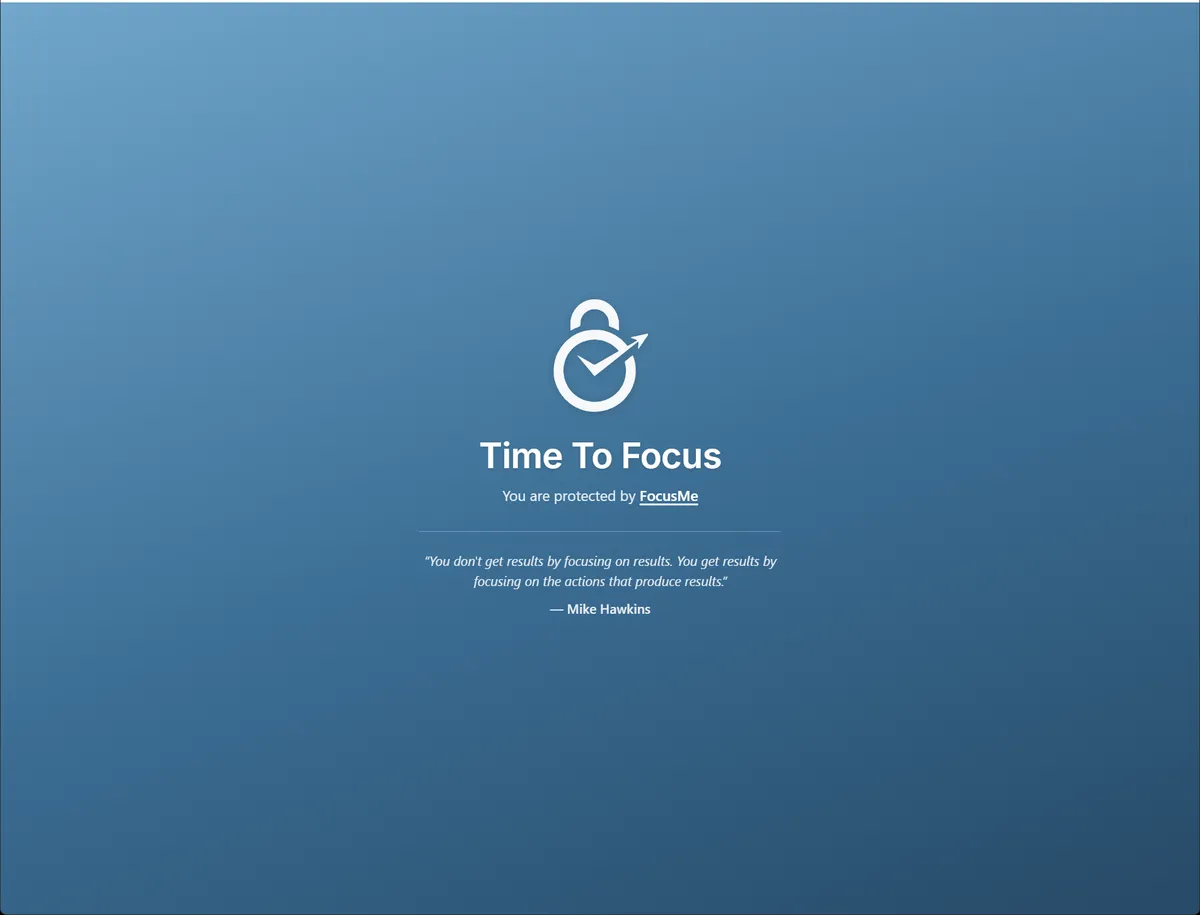
Install the free FocusMe extension for Chrome when FocusMe offers it. With it, a blocked site shows the FocusMe block page, “Time To Focus”, in place of the site, and in incognito windows too once you allow the extension there. Without it, FocusMe closes the tab.
The extension also has two switches, Block YouTube Shorts and Block Facebook Reels, so you can keep YouTube for lessons and lose the Shorts. More in how to block YouTube.
Make it stick. Enforced Mode means the plan runs to its end; while it runs it cannot be stopped or weakened, only made stricter.
How to block websites on Chrome for Android
Chrome on Android doesn’t run extensions and has no blocking setting for an adult account. Android’s Digital Wellbeing can put a daily timer on a site in Chrome (Settings, Digital Wellbeing, the chart, Chrome, then Set site timer), but it turns off from the same screen. For a child, use Family Link as above. For yourself, install a blocking app: FocusMe for Android is free to download and blocks apps and websites on the phone, and with FocusMe Premium your plans sync between your computer and your phone.
Block Websites with FocusMe
Block Websites on every device, in one plan
Websites and apps on Windows, Mac, Linux, Android and iPhone. Schedules, time limits, and protection that holds until the time you set.
Start your free 14-day trialNo credit card needed. How the website blocker works
Frequently asked questions
Can I block a website on Chrome without an extension?
Not with a setting on an ordinary account. The options without an extension are Family Link (for a child’s account), a policy your organization sets, or a desktop app such as FocusMe that blocks sites in every browser.
Can I block websites on Chrome for free?
Yes. LeechBlock NG and StayFocusd are free extensions, and Family Link is free. FocusMe is paid, with a 14-day free trial, no card needed; current plans are on the pricing page.
Does FocusMe have a Chrome extension?
Yes, free in the Chrome Web Store. It works together with the FocusMe app on your computer: the app holds your plans, and the extension shows the block page in Chrome. It doesn’t block by itself.
Why did my website blocker extension stop working?
Usually one of three things: it was turned off at chrome://extensions, you’re in an incognito window it isn’t allowed in, or you’re using a different browser.
What’s the best website blocker for Chrome?
It depends on how much you need. We compare nine in the best website blockers, and FocusMe vs StayFocusd covers the most popular Chrome extension.
Related: how to block websites on Windows 11, how to block websites on Mac, FocusMe website blocker.
First published
Want to talk it through? Join the FocusMe community