A Mac gives you two built-in ways to block a website and neither is made for the person asking. Screen Time is for a child’s Mac with a parent holding the passcode. The hosts file is a Terminal edit that the same Terminal edit undoes. Here are both, step by step and with their real limits, and then a FocusMe plan that blocks a site in Safari, Chrome, Firefox and Brave on a schedule, with protection you choose.
Short version
FocusMe blocks Websites on your computer and phone on the schedule you set.
Try it free for 14 daysThe manual ways, and where they fall down
Screen Time
- Open System Settings, then Screen Time, then Content & Privacy, and turn it on.
- Under Web Content, choose Limit Adult Websites, then add the sites you want blocked to the Restricted list.
- Set a Screen Time passcode so the settings cannot be changed without it.
The limits: it is enforced for Safari and for apps that use Apple’s web engine, while Chrome and Firefox bring their own; the passcode is one you set yourself; there is no schedule; and the Limit Adult Websites filter has to be on for the restricted list to work, which some people find blocks more than they meant.
The hosts file
- Open Terminal and run
sudo nano /etc/hosts, then enter your password. - Add one line per site:
127.0.0.1 www.reddit.com, then127.0.0.1 reddit.com. Press Control-O to save and Control-X to leave. - Run
sudo dscacheutil -flushcache; sudo killall -HUP mDNSResponderso the change takes effect.
The site now fails in every browser on the Mac. The limits: no schedule, every alternative address needs its own line, and the same three steps undo it.
Browser extensions
A blocker extension works in one browser, switches off from its extensions page, and is off in private windows unless you allow it. Safari, Chrome and Firefox each need their own.
Block websites on a Mac with FocusMe
FocusMe for Mac runs on macOS 12 or later, Apple Silicon and Intel. One plan covers Safari, Chrome, Firefox, Brave and Edge, on a schedule, with protection that holds.
Make the plan
- Install FocusMe, grant the Accessibility permission it asks for on first run (it is how FocusMe reads window titles), and open the Plans tab. Click Add a Plan.
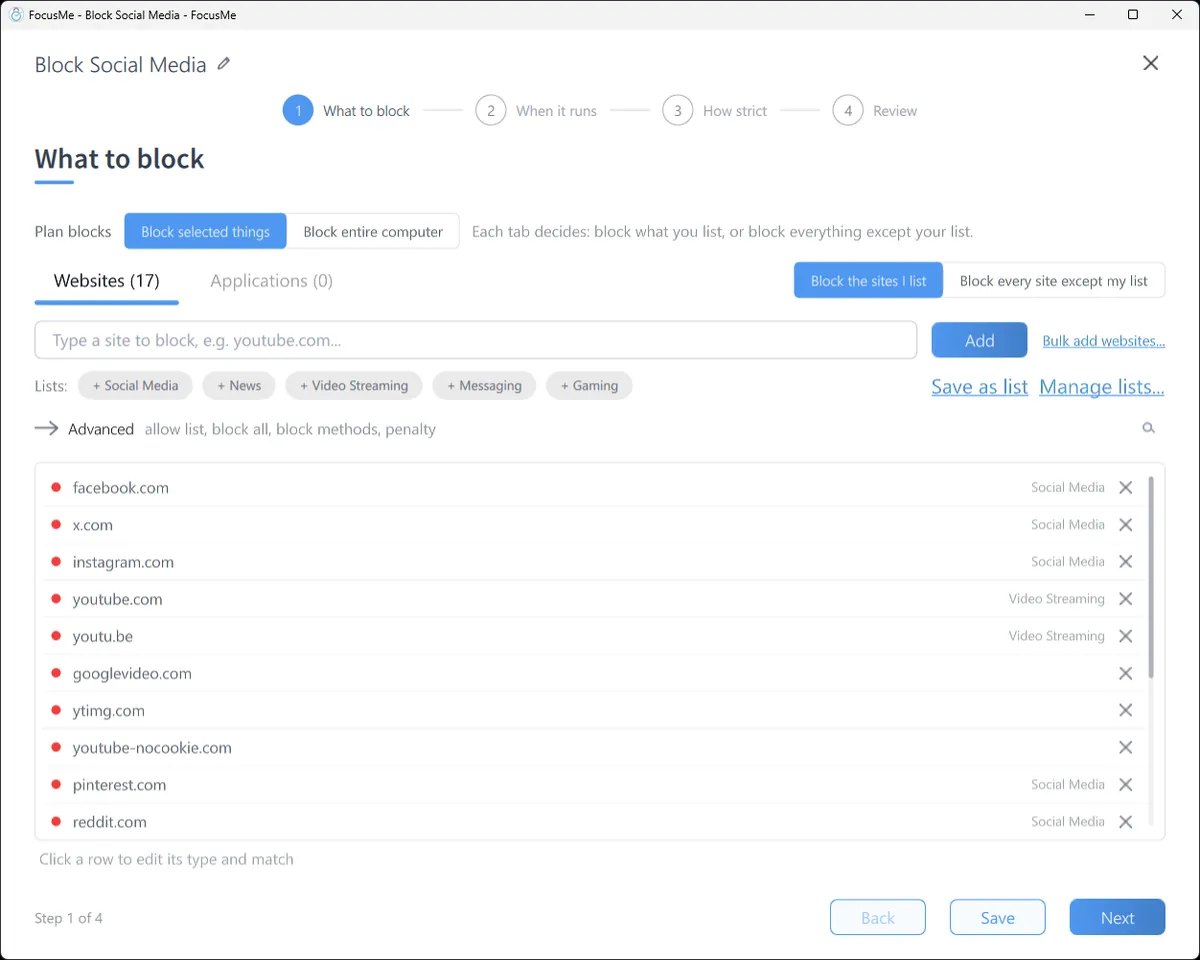
- On What to block, type each site and click Add, or click a ready-made list (Social Media, News, Video Streaming, Messaging, Gaming). A domain covers its subdomains; a path such as
youtube.com/shortsblocks one part of a site. - Click Next, choose a Quick Timer or a Weekly Schedule, click Next again, pick how strict, and click Create & Enable.
Safari and the other browsers
Safari is covered by FocusMe for Safari, a free extension from the Mac App Store: click Safari in Settings, Browsers to install it, then turn it on in Safari’s Extensions settings. Chrome, Firefox, Brave and Edge use the free FocusMe extension from their own stores, offered from the same screen. With the extension, a blocked site shows the FocusMe block page instantly; without it, FocusMe still closes the tab.
Block everything except what you need
For deep work, flip the switch beside the tabs to Block every site except my list and allow only your work tools. Add accounts.google.com if your tools sign in through Google.
Limit instead of block
On When it runs, set an interval’s mode to Time Limit (30 minutes of social media a day) or Session Limit (three visits of ten minutes with a wait between). FocusMe counts the time you actually spend.
Make it stick
Give it a schedule. A plan that starts at 9 by itself removes the daily decision.
Pick how strict. Gentle Guidance asks for five random characters before a plan stops: a decision, not a reflex. Firm but Flexible adds a wait and three pauses a day. Lock it Down means 25 characters typed perfectly and a ten-minute wait, no pauses.

Or commit. Enforced Mode means the plan runs to its end; while it runs it cannot be stopped or weakened, FocusMe cannot be quit from the menu bar, and the plan can only ever be made stricter. On a Mac, a plan can also keep Activity Monitor, Terminal and the clock settings closed while it runs, so a schedule ends when it should.
Block Websites with FocusMe
Block Websites on every device, in one plan
Websites and apps on Windows, Mac, Linux, Android and iPhone. Schedules, time limits, and protection that holds until the time you set.
Start your free 14-day trialNo credit card needed. How the website blocker works
Frequently asked questions
Does it block websites in Safari?
Yes, through FocusMe for Safari, a free extension from the Mac App Store. Chrome, Firefox, Brave and Edge use the free FocusMe extension. One list, every browser.
Why does FocusMe ask for Accessibility permission?
So it can read window titles. That is what lets a rule match one website or one window rather than a whole app. Blocking an app by name works without it.
Can I block a site only during work hours?
Yes. Draw the hours on the weekly schedule and the plan starts and stops by itself.
Does it work on an Apple Silicon Mac?
Yes. FocusMe runs natively on M-series and Intel Macs, on macOS 12 Monterey or later.
Related: FocusMe for Mac, How to block apps on a Mac, FocusMe vs SelfControl.
Want to talk it through? Join the FocusMe community