Windows can stop a program running, but every built-in way to do it is meant for an administrator locking down someone else. When the someone else is you, the lock has your key. Here are the manual ways to block apps on Windows 11 and 10, what each cannot do, and a FocusMe plan that blocks the apps and games you choose, when you choose.
Short version
FocusMe blocks Apps on your computer and phone on the schedule you set.
Try it free for 14 daysThe manual ways, and where they fall down
Microsoft Family Safety
For a child’s Microsoft account, a parent can set a daily allowance and an allowed time window for each app and game, from the Family Safety app or the web. It works, for a child’s account, with the parent approving extra time. It does nothing for an adult’s own account.
Group Policy and AppLocker
Windows 11 Pro and Enterprise can refuse to run named programs through the Local Group Policy Editor or AppLocker. It is built for IT departments, it is not available on Windows Home, it has no schedule, and the administrator who set it can unset it.
Uninstalling
Lasts until the reinstall, which for a Store app or a Steam game is one click and a download.
Block apps on Windows with FocusMe
FocusMe is an app and website blocker for Windows 10 and 11. It can block any program, game or Store app by name, by file, by folder or by window title, on a schedule, with protection you choose.
Make the plan
- Open the Plans tab, click Add a Plan and name it.
- On What to block, switch to the Applications tab. Type a name such as
Discordor a process such assteam.exeand click Add, or click Pick from installed apps and tick the apps you want. - Click Next, choose when it runs, click Next, pick how strict, and click Create & Enable.
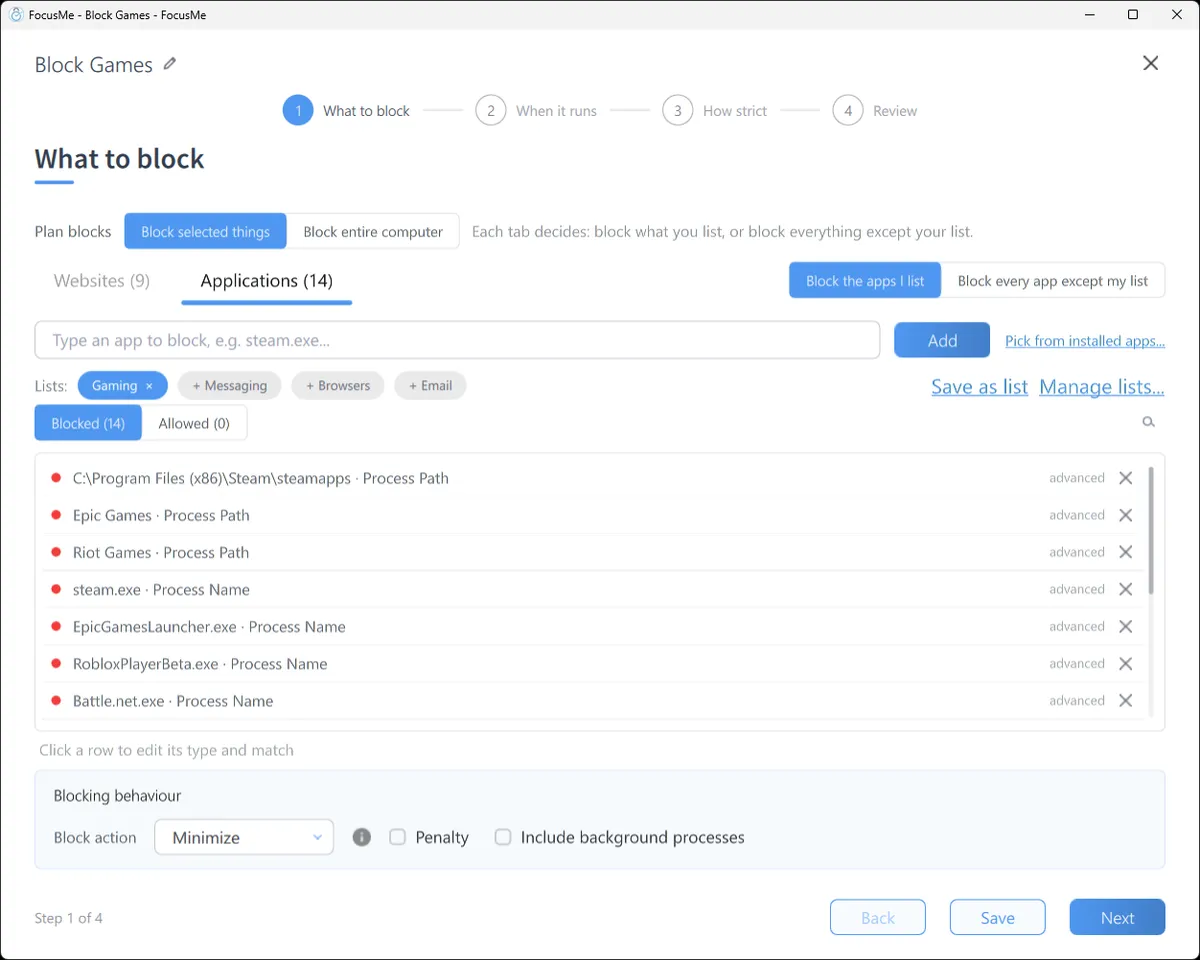
A blocked app is minimised or closed the moment it opens, with a message that says which plan did it. In the plan’s Advanced panel you can choose the action: minimise, close, or end the process outright for apps that ignore a close request. Tick Include background processes for apps that run without a window.
Microsoft Store apps
Store apps share a host process, so add them by Application Name (Netflix, Xbox), or open the app and pick it from the Open Windows tab of the app picker while it is running.
Every game in a folder
Type steamapps\common, click the row, set its type to Process Path and its match to Contains. Every game in Steam’s library folder is blocked, including ones you install later, while Steam itself stays open. An Epic Games folder works the same way.
Part of an app
A Window Title entry matches text in the title bar, so you can block a game inside a launcher, one Discord server, or a browser tab called “Netflix” without blocking the whole program. The Helper in the sidebar shows the name, process, path and title of every open window, with Add to plan on each.
The whole computer
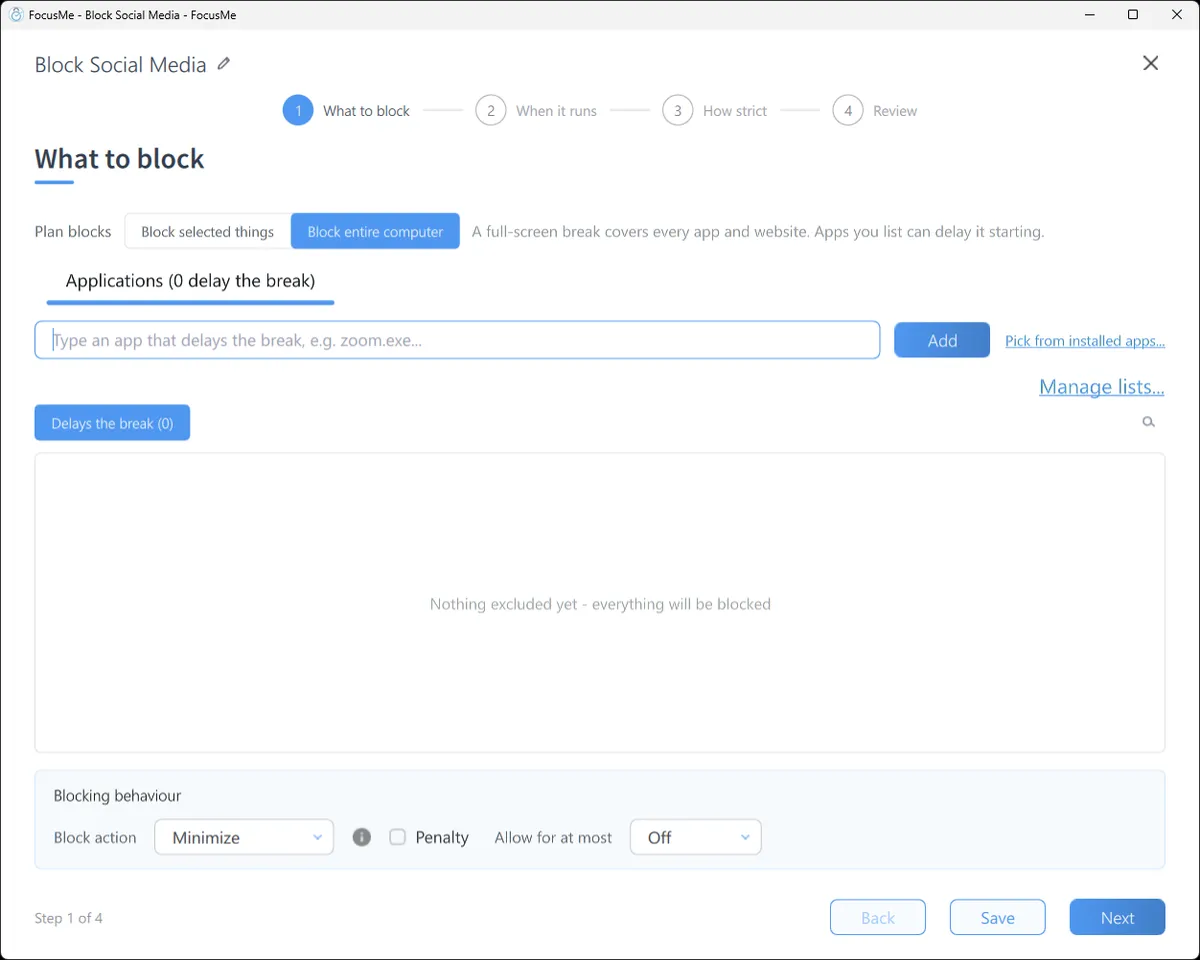
Set Plan blocks to Block entire computer and a full-screen break covers everything while the plan runs. With a weekly schedule from 11pm to 7am it is a bedtime for the PC.
Limit instead of block
On When it runs, set the mode to Time Limit (four hours of gaming a week) or Session Limit (two sessions of an hour, with a wait between). FocusMe counts the time the app is actually in front of you.
Make it stick
Give it a schedule. Games blocked on school nights from 4pm to 10pm, Discord blocked during work hours: the plan starts and stops by itself.
Pick how strict. Gentle Guidance asks for five random characters before a plan stops: a decision, not a reflex. Firm but Flexible adds a wait and three pauses a day. Lock it Down means 25 characters typed perfectly and a ten-minute wait, no pauses.

Or commit. Enforced Mode means the plan runs to its end; while it runs it cannot be stopped or weakened, FocusMe cannot be quit, and the plan can only ever be made stricter. On Windows, a plan can also keep Windows Settings and Task Manager closed while it runs, and the Extra Protection Service keeps FocusMe running through restarts. If you want a human in the loop, an accountability partner can approve a stop instead of a typing challenge.
Block Apps with FocusMe
Block Apps on every device, in one plan
Websites and apps on Windows, Mac, Linux, Android and iPhone. Schedules, time limits, and protection that holds until the time you set.
Start your free 14-day trialNo credit card needed. How the website blocker works
Frequently asked questions
Can FocusMe block Microsoft Store apps?
Yes. Add them by application name or window title, or pick them from the Open Windows tab while they are running.
Can I block a game but keep the launcher?
Yes. Block the game’s process, or every executable under the launcher’s games folder, and leave the launcher off the list.
Does it need administrator rights?
The standard installer uses them and offers the most protection. A non-admin installer is available for a work or school account.
Can I limit an app to a few hours a week?
Yes. Set the plan’s mode to Time Limit with a weekly budget, or a Session Limit for a set number of sessions a day.
Related: FocusMe for Windows, How to block Steam and PC games, Limit gaming time.
Want to talk it through? Join the FocusMe community