Games are the hardest thing to block, because the person blocking them is the person who wants to play. Uninstalling lasts until the download finishes. Steam’s own controls are built for parents. Here are the manual ways to block Steam and PC games, what each cannot do, and a FocusMe plan that blocks the games you choose, when you choose, without deleting anything.
Short version
FocusMe blocks Steam and PC Games on your computer and phone on the schedule you set.
Try it free for 14 daysThe manual ways, and where they fall down
Steam Families
Steam’s parental controls, now part of Steam Families, let a parent set playtime limits by the hour or the day, restrict the store and chat, and approve requests for extra time. For a child’s account with a parent holding the family, it is good. For your own account it is no use at all: you are the parent, and the limit asks you for permission.
Uninstalling
It works for a day. A reinstall is a click and a download, and Steam keeps your saves in the cloud, so there is nothing to lose by coming back.
Microsoft Family Safety
On Windows, Family Safety can put daily limits on apps and games for a child account, managed from a parent’s account. It is a parent’s tool: the limits apply to a child’s Microsoft account, and the parent approves more time.
The hosts file
Blocking store.steampowered.com in the hosts file stops the store page loading in a browser. The Steam client, the launcher and the games are untouched.
Block Steam and games with FocusMe
FocusMe is an app and website blocker for Windows, Mac and Linux. It can block Steam entirely, block the games but leave the store and chat, or block every game in a folder, including ones you install later.
Fastest route: the Plan Library
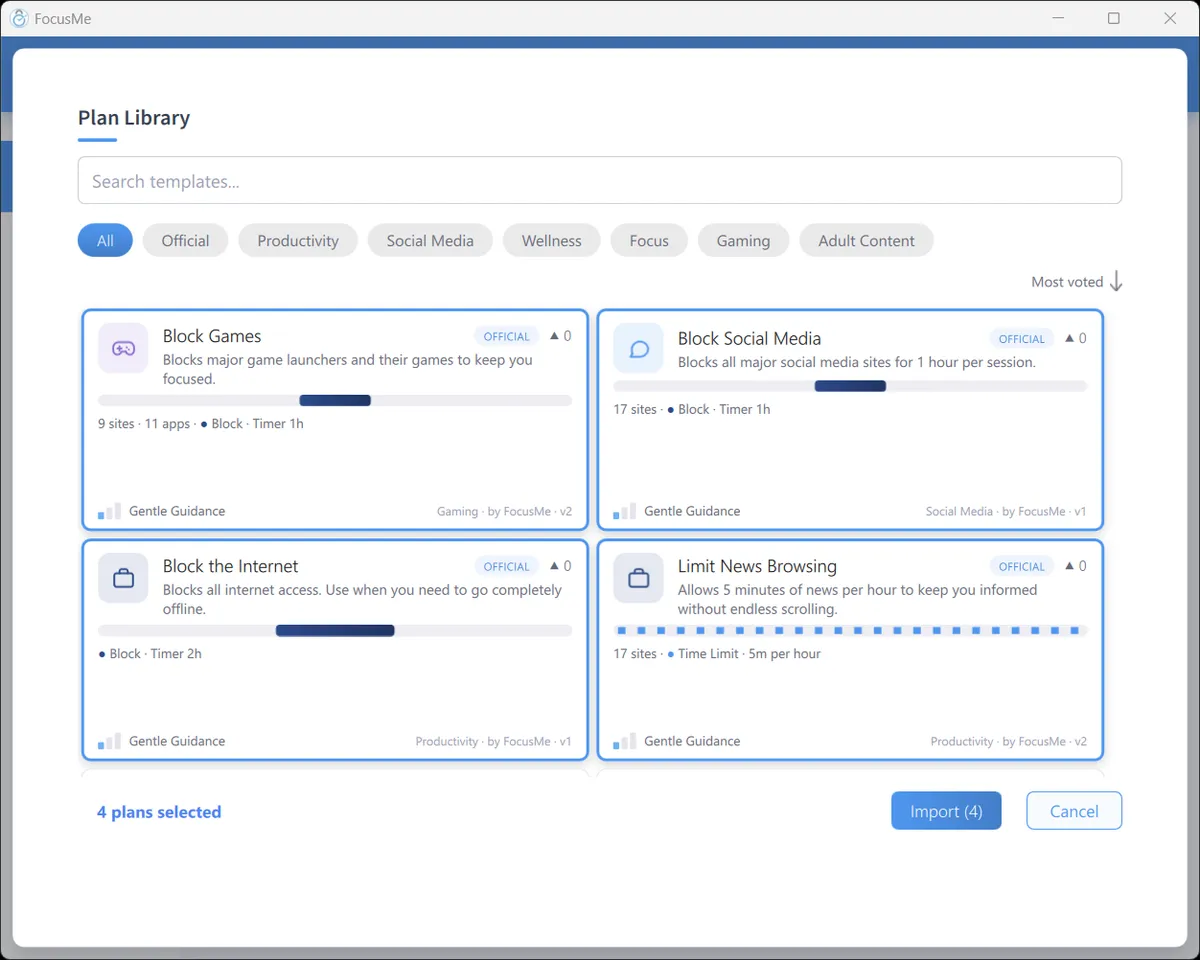
Open the Plans tab, click Plan Library, choose the Gaming chip and import the official Block Games template. Edit it to add any game or launcher it does not already list, pick a schedule and start it.
Block Steam entirely
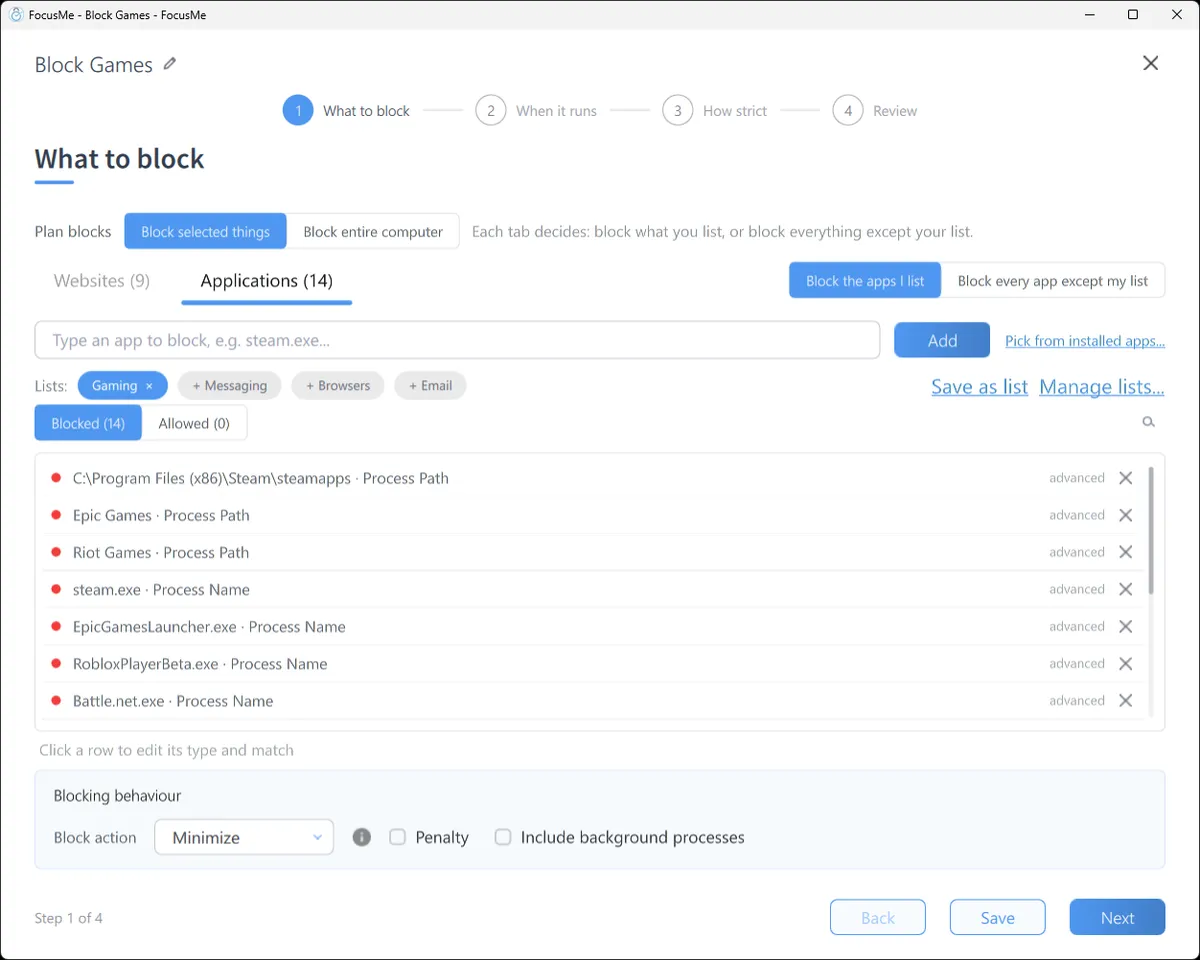
Click Add a Plan, switch What to block to the Applications tab, type steam.exe (on a Mac, Steam) and click Add. With the client blocked, no game launches through it. Epic, Battle.net, Riot and the rest go on the same list by name.
Block the games, keep Steam
To keep the store and chat and lose the play: start a game, click Pick from installed apps and tick it on the Running Processes tab. Each game is added with an exact match, so nothing else is caught. The Helper in the sidebar shows the process name of any open window if you are not sure which it is.
Every game in the library, including future ones
Type steamapps\common on the Applications tab, click the row, set its type to Process Path and its match to Contains. Any executable running from Steam’s library folder is blocked, while steam.exe itself is not. An Epic Games folder works the same way.
Minecraft, Roblox and Discord
Minecraft runs as javaw.exe, so block it by Window Title containing Minecraft. Roblox and Discord go on by name. A blocked app is closed or minimised the moment it opens, with a message that says which plan did it.
The schedule
On When it runs, draw the hours: a weekly schedule with games blocked on school nights from 4pm to 10pm, or a Time Limit of four hours of gaming a week that FocusMe counts as you play. A Session Limit (two sessions of an hour, with a wait between) keeps one match from becoming the evening.
Make it stick
Games are exactly where a weak plan gets switched off. This is the part that matters.
Pick how strict. Gentle Guidance asks for five random characters before a plan stops: a decision, not a reflex. Firm but Flexible adds a wait and three pauses a day. Lock it Down means 25 characters typed perfectly and a ten-minute wait, no pauses: enough for “one quick game” to stop being worth it.

Or commit. Enforced Mode means the plan runs to its end; while it runs it cannot be stopped or weakened, only made stricter. On Windows, a plan can also keep Task Manager and Windows Settings closed while it runs, and the Extra Protection Service keeps FocusMe running through restarts. If you want a human in the loop, an accountability partner can approve a stop instead of a typing challenge, which is how many parents and partners use it.
Block Steam and PC Games with FocusMe
Block Steam and PC Games on every device, in one plan
Websites and apps on Windows, Mac, Linux, Android and iPhone. Schedules, time limits, and protection that holds until the time you set.
Start your free 14-day trialNo credit card needed. How the website blocker works
Frequently asked questions
Can I block games but keep Steam chat and the store?
Yes. Block the game executables, or every executable under steamapps\common, and leave steam.exe off the list.
Can I limit gaming to a few hours a week instead of blocking it?
Yes. Set the plan’s mode to Time Limit with a weekly budget. FocusMe counts the time the game is actually in front of you and blocks it when the budget is spent.
A game keeps reopening after it is blocked. What now?
Some games have launchers or companion processes. Open the Helper from the sidebar while the game is open and add every related process to the plan, and tick Include background processes in the Advanced panel.
Does FocusMe block games on a Mac and on Linux?
Yes. Block by application name on a Mac, or by process name on Linux; Steam and Discord are the usual suspects on both.
Related: Limit gaming time, FocusMe for parents, FocusMe for students.
Want to talk it through? Join the FocusMe community