YouTube is the distraction people most often ask us about, because it is also where the tutorial you need lives. So the goal is rarely “never again”. It is “not during work”, “not after 10pm”, or “the videos, fine, but not the Shorts feed”. Here are the manual ways to block YouTube, what each one cannot do, and the FocusMe plan that does the lot on a schedule.
Short version
FocusMe blocks YouTube on your computer and phone on the schedule you set.
Try it free for 14 daysThe manual ways, and where they fall down
YouTube’s own settings
In the mobile app, under your profile and the settings cog, Time management holds a break reminder, a bedtime reminder and a daily limit for the Shorts feed. They are worth turning on. They are also reminders: a tap dismisses them, and a signed-out tab ignores them. On the desktop site there is nothing equivalent.
The hosts file
Every computer has a text file that maps names to addresses. Add lines sending youtube.com, www.youtube.com and m.youtube.com to 127.0.0.1 and the site stops loading in every browser. On Windows the file is C:\Windows\System32\drivers\etc\hosts, opened in Notepad as administrator; on a Mac it is /etc/hosts, edited with sudo nano in Terminal.
The limits: it is all or nothing, so Shorts and the tutorial go together; there is no schedule, so it blocks at 11am and at 11pm alike; the same edit undoes it in thirty seconds, which is the problem you were trying to solve; and it does nothing for the YouTube app on your phone or TV.
Browser extensions
Free blocker extensions work in one browser, switch off from the extensions page in two clicks, and are off in private windows unless you allow them. A nudge, not a habit.
Screen Time and Digital Wellbeing
On an iPhone or a Mac, Screen Time can put an app limit on YouTube or add it to a never-allow list under Content & Privacy. Android’s Digital Wellbeing has app timers. Both run on a passcode you set yourself and an “ignore limit” button, so they hold for exactly as long as you want them to.
Block YouTube with FocusMe
FocusMe is a website and app blocker for Windows, Mac and Linux, with apps for Android and iPhone that sync with it. One plan can block the whole site, only Shorts, or give you a daily budget, in every browser on the computer.
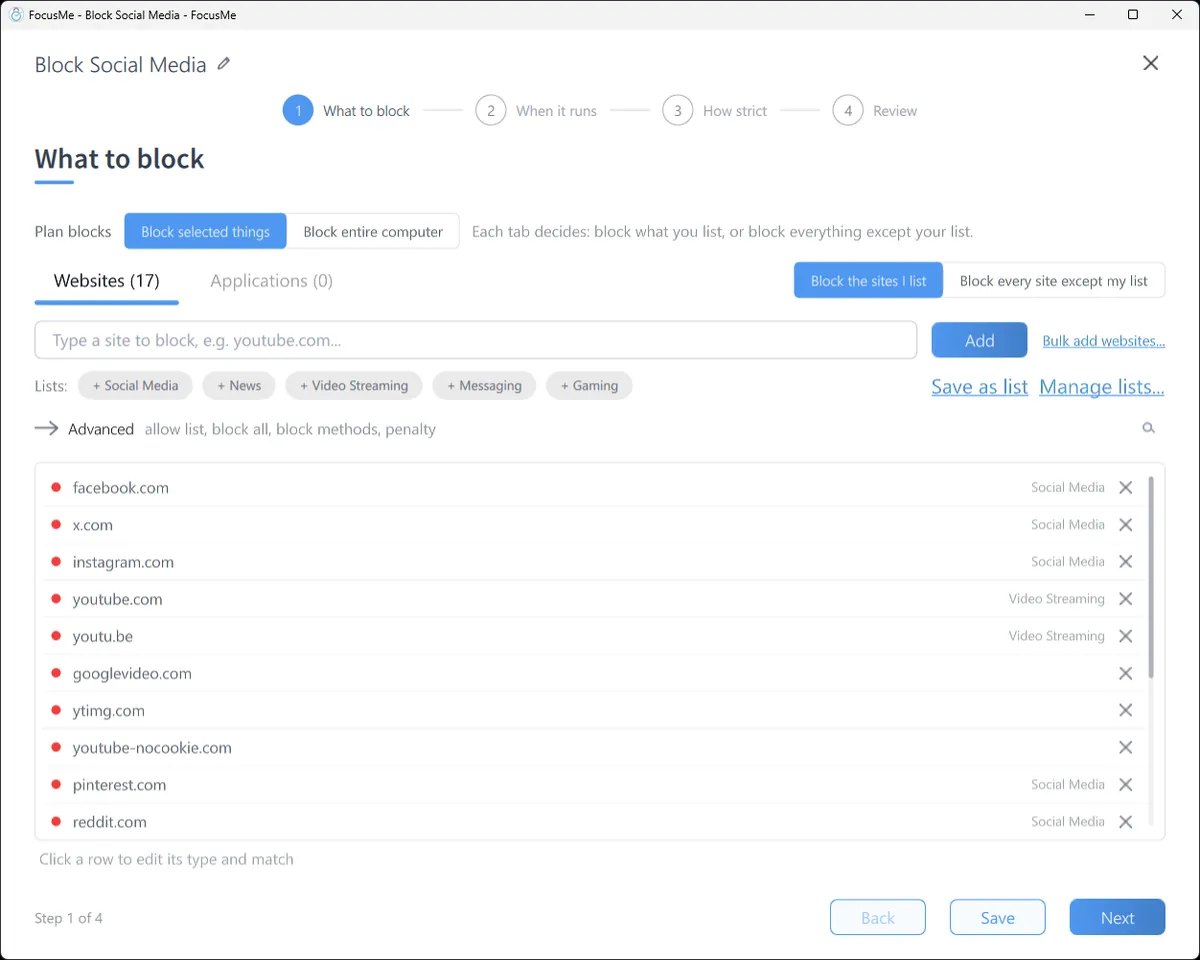
Block all of YouTube
- Open the Plans tab, click Add a Plan and name it.
- On What to block, type
youtube.cominto the add row and click Add. That one entry coversm.youtube.comandmusic.youtube.comtoo. - Click Next for the schedule, pick how strict, then Create & Enable.
Open YouTube in Chrome, Edge, Firefox, Brave or Safari and you get the FocusMe block page instead. The free browser extension makes that instant and precise; without it, FocusMe still closes the tab.
Block only Shorts
Same plan, with a path instead of the whole site:
- Click Add a Plan and name it, say “No Shorts during work”.
- On What to block, stay on the Websites tab, type
youtube.com/shortsinto the add row and click Add. - Click the new row to open its inline editor and check that the type is Website address and the match is Contains.
- Click Next for the schedule, pick how strict, then Create & Enable.
Because the entry includes the path, the Shorts feed and every individual Short are blocked while search, channels and normal videos keep working. Shorts also turn up on the home page and in search results. To catch them there too, add a second entry, Shorts, and set its type to Address or page title. That rule is broad: it blocks any tab whose address or title contains the word, so if a page you need has “Shorts” in its title, stay with the address entry alone.
Then test it: open a normal video, then a Short. The video plays and the Short gets the block page.
Quicker still: click the FocusMe icon in your browser toolbar and tick Block YouTube Shorts. The plan version is the one you can schedule and protect.
A budget instead of a ban
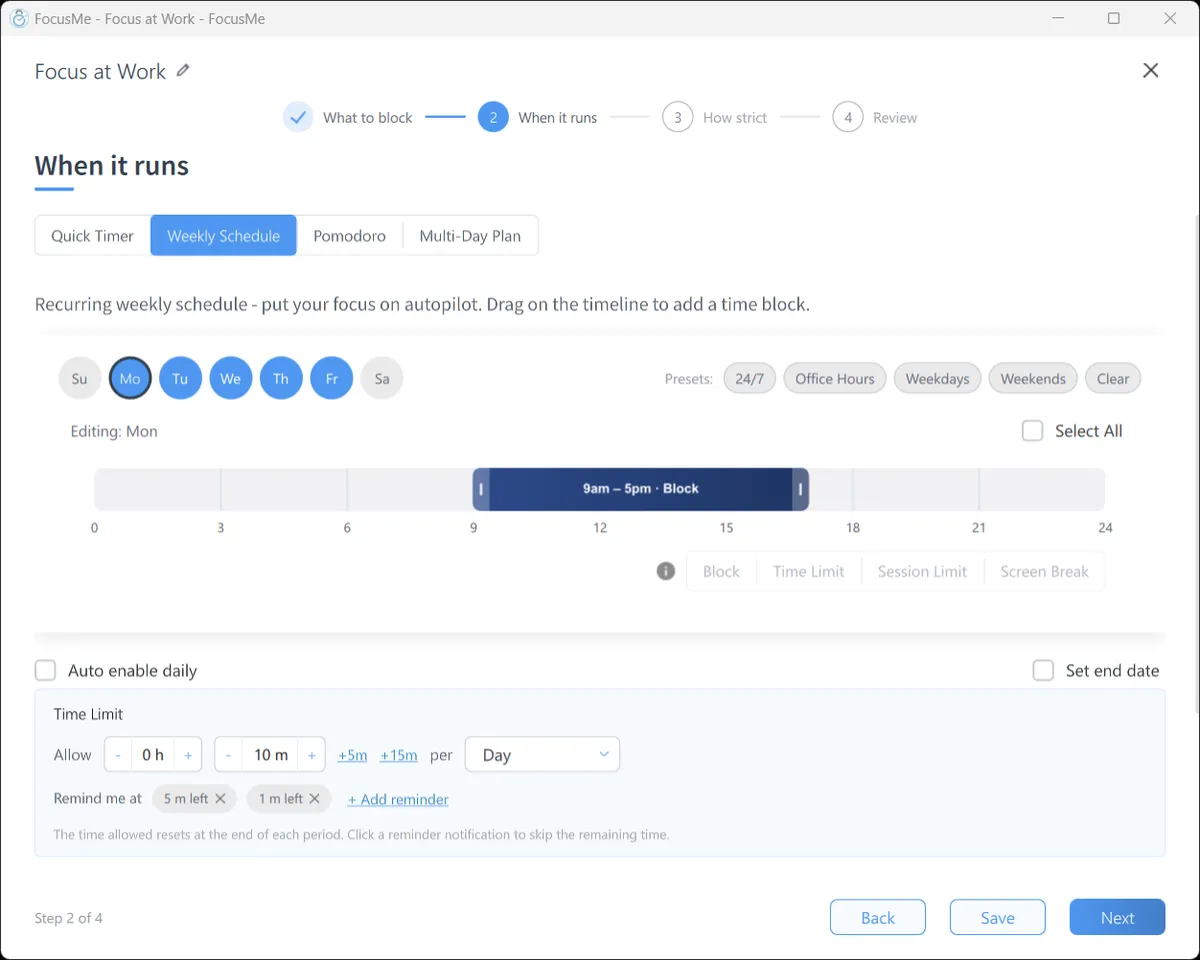
On When it runs, switch the rule mode to Time Limit and allow, say, 30 minutes per day. FocusMe counts time you actually spend on YouTube, not clock time, and blocks the site when the budget is spent until tomorrow. A Session Limit (three visits of ten minutes, with a wait between) stops the all-afternoon rabbit hole without banning the quick look-up.
On your phone
FocusMe for Android blocks the YouTube app and youtube.com in Chrome, Samsung Internet, Firefox and the rest, on the same kind of schedule. On iPhone, pick the YouTube app, or the whole Entertainment category, and iOS Screen Time enforces the plan, so it keeps working when FocusMe is closed. Sign in with the same account and the plan you made on your computer is on your phone too.
Make it stick
A blocker you can switch off is a to-do list. Three settings turn the plan above into something that holds.
Give it a schedule. A weekly schedule, 9 to 5 on weekdays, means the plan starts and stops by itself and the decision is made once, in a calm moment, not at 3pm with a video half loaded.
Pick how strict. Gentle Guidance asks for five random characters before a plan stops: a decision, not a reflex. Firm but Flexible adds a wait and three pauses a day. Lock it Down means 25 characters typed perfectly and a ten-minute wait, with no pauses.

Or commit. Enforced Mode means the plan runs to its end; while it runs it cannot be stopped or weakened, only made stricter. Most people never need it. The ones who do describe the same relief: YouTube stops being a question.
Block YouTube with FocusMe
Block YouTube on every device, in one plan
Websites and apps on Windows, Mac, Linux, Android and iPhone. Schedules, time limits, and protection that holds until the time you set.
Start your free 14-day trialNo credit card needed. How the website blocker works
Frequently asked questions
Can I block YouTube in every browser at once?
Yes. A FocusMe plan applies to every browser on the computer, private windows included. Switching browser changes nothing.
Can I block Shorts but keep normal videos?
Yes. Add youtube.com/shorts to the plan, or tick Block YouTube Shorts in the FocusMe browser extension. Search, channels and ordinary videos stay open.
Can I allow one channel?
Yes. Block youtube.com, then put the channel’s address, such as youtube.com/@channelname, on the allow list. Allowed entries always win. Set Similarity protection so the allow list cannot be stretched to the whole site.
Does this work on a school or work laptop without admin rights?
Yes. The FocusMe non-admin installer for Windows installs for your user without administrator rights.
Related: Block YouTube Shorts and Facebook Reels, step by step, Break a social media habit, The FocusMe website blocker.
Want to talk it through? Join the FocusMe community