TikTok is built for one thing: the next video. Nobody opens it for forty minutes on purpose. That is why the usual advice, “just set a limit”, does not survive the second week. Here are the ways to block TikTok that people actually try, the catch in each, and a FocusMe plan that keeps blocking after the novelty has worn off.
Short version
FocusMe blocks TikTok on your computer and phone on the schedule you set.
Try it free for 14 daysThe manual ways, and where they fall down
TikTok’s daily screen time
In the app, under Settings and privacy, then Screen time, you can set a daily limit (40 minutes, an hour, custom) and a passcode that unlocks more time. It is the best of the built-in options, and it is still a door with your own key behind it. When the limit lands you type the passcode and carry on. Sleep reminders and screen time breaks in the same menu are notifications, nothing more.
Deleting the app
It works until the moment of weakness, when a reinstall takes under a minute and signing in takes one tap. And TikTok is a website too: tiktok.com plays the same feed in any browser, on the phone and on the computer.
Screen Time and Digital Wellbeing
On iPhone, Screen Time can give TikTok a daily app limit; Android’s Digital Wellbeing has app timers. Both are protected by a passcode you set and an “ignore limit” button. For a child’s phone with a parent holding the passcode they are a reasonable start. For your own phone they last as long as your resolve.
The hosts file on a computer
On Windows or Mac, a line sending tiktok.com and www.tiktok.com to 127.0.0.1 in the hosts file stops the site loading. It needs administrator rights, the same edit undoes it, there is no schedule, and the phone, where TikTok actually lives, is untouched.
Block TikTok with FocusMe
FocusMe has apps for Android and iPhone that block apps and websites on a schedule, and a desktop app for Windows, Mac and Linux. Sign in on both and the plan syncs.
On Android
- Open FocusMe, tap Add a plan and name it.
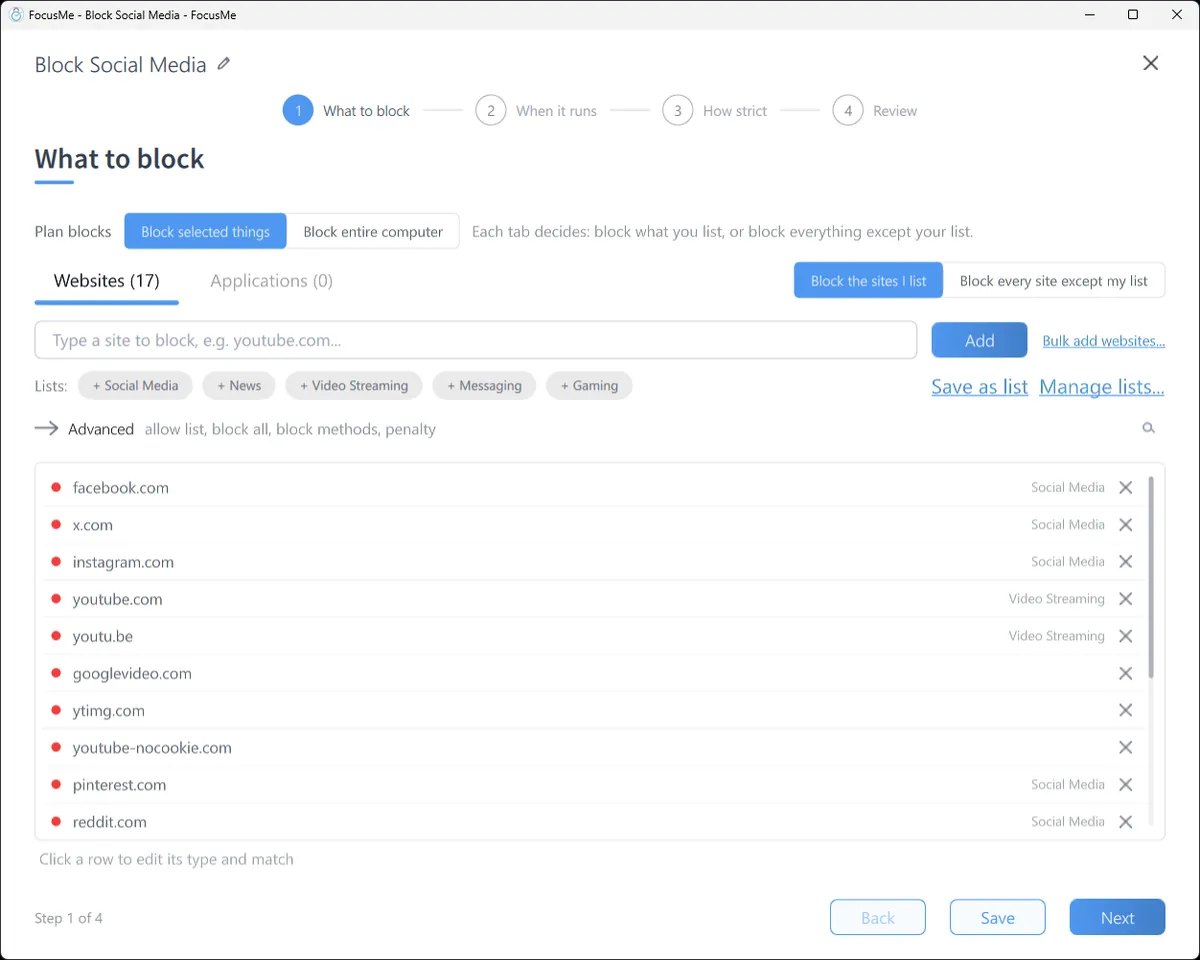
- On What to block, pick TikTok from the app list, then add
tiktok.comunder websites so the browser version is covered too. The block holds in Chrome, Samsung Internet, Firefox, Edge, Opera and Brave, and in the browsers built into Facebook, Messenger and Instagram, so a shared link opens the FocusMe block screen rather than the feed. - On When it runs, choose a weekly schedule, a budget (30 minutes a day, or three short sessions with breaks between), or a limit on how many times the app opens.
- On How strict, pick a level and save.

On iPhone
Create a plan, pick TikTok from your apps (or the whole Social category in one tap) and add tiktok.com as a website. iOS Screen Time enforces the plan, which is the part that matters: swipe FocusMe away and the block carries on. Open TikTok during the plan and you see FocusMe’s shield with the plan’s name, not a bare system message.
On Windows, Mac and Linux
Add tiktok.com on the What to block step of a plan. It is blocked in every browser on the computer, private windows included, and the TikTok desktop app from the Microsoft Store can go on the same plan by its application name.
Make it stick
The difference between a limit and a habit change is what happens at the moment you want out.
Schedule it once. A plan that blocks TikTok from 9 to 5 on weekdays, or from 10pm to 7am every night, starts and stops by itself. You decide once, in a calm moment, and the evening holds no negotiation.
Choose how strict. On the phone, Gentle Guidance asks for five random characters before a plan stops: a decision, not a reflex. Firm but Flexible asks for 20 characters typed perfectly. Lock it Down gives you no way to stop until the plan ends. On the desktop, Enforced Mode means the plan cannot be stopped or weakened while it runs, only made stricter.
Use a budget before a ban. If a total block feels like too much, start with 30 minutes a day on Firm but Flexible. When the budget is spent, TikTok is blocked until tomorrow, and the “just five more minutes” argument has nowhere to go.

Block TikTok with FocusMe
Block TikTok on every device, in one plan
Websites and apps on Windows, Mac, Linux, Android and iPhone. Schedules, time limits, and protection that holds until the time you set.
Start your free 14-day trialNo credit card needed. How the website blocker works
Frequently asked questions
Can I block TikTok but keep messages?
On a computer, yes: block tiktok.com and put tiktok.com/messages on the allow list, which always wins. On the phone the app is blocked as a whole.
Does it block TikTok videos sent to me on WhatsApp?
Yes. A TikTok link opens in the browser or the app, and both are covered by the plan. On Android the browsers built into Facebook, Messenger and Instagram are checked too.
Can I use it on my child’s phone?
Yes. Set the plan up on their phone, choose Lock it Down, and sign in with your own FocusMe account so the plan syncs and you can see it from your computer. Many parents start with a bedtime plan rather than a total ban.
Is FocusMe free on the phone?
FocusMe for Android and iPhone is free to download, and blocking, schedules and time limits need no account or payment. Premium, which syncs plans with your computer, is included with every desktop licence.
Related: Stop scrolling at night, Break a social media habit, FocusMe for Android, FocusMe for iPhone.
Want to talk it through? Join the FocusMe community