X is built around a feed that never ends and a trending column that always has something worse in it. Blocking it is popular; blocking it in a way that lasts is rarer, because X is also where a lot of people’s work contacts and news live. Here are the manual ways to block X, what each cannot do, and a FocusMe plan that blocks the feed, keeps what you need, and holds.
Short version
FocusMe blocks X (Twitter) on your computer and phone on the schedule you set.
Try it free for 14 daysThe manual ways, and where they fall down
Logging out and deleting the app
Logged out, you can still read most of X in a browser. Deleting the app takes a minute to undo, and x.com works in any browser on the phone.
The hosts file
On Windows (C:\Windows\System32\drivers\etc\hosts, as administrator) or Mac (/etc/hosts), send x.com, www.x.com, twitter.com and www.twitter.com to 127.0.0.1 and the site stops loading in every browser on that computer. It is all or nothing, with no way to keep your messages or one list; there is no schedule; the same edit undoes it; and it does nothing on the phone.
Browser extensions
Feed-hiding and blocker extensions work in one browser and switch off from the extensions page. They are off in private windows unless you allow them, and another browser is a click away.
Screen Time and Digital Wellbeing
An app limit on X, in iPhone Screen Time or Android’s Digital Wellbeing, is protected by a passcode you set and an “ignore limit” button. It helps on a child’s phone where a parent keeps the passcode. On your own phone it holds while you want it to.
Block X with FocusMe
FocusMe blocks websites and apps on Windows, Mac and Linux, and on Android and iPhone, and it understands paths, so you can block the parts of X that pull you in and keep the parts you use.
Block the whole site
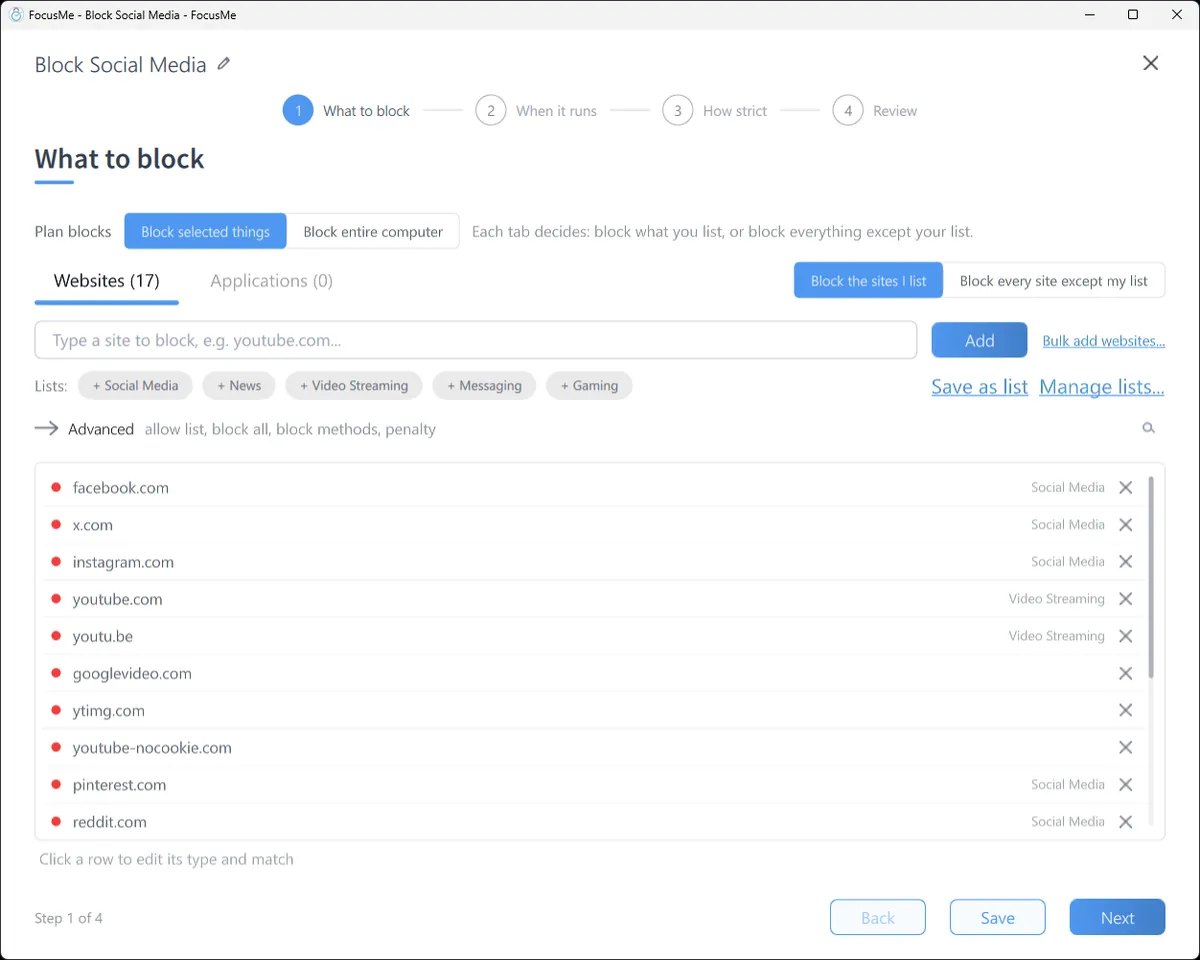
On What to block, type x.com and click Add, then add twitter.com too, because old links still redirect through it. That covers the mobile site and every browser on the computer, private windows included.
Block the feed, keep messages and lists
Add x.com to the block list, open Advanced, switch to Allowed and add x.com/messages. Allowed entries always win, so your inbox opens and the home feed shows the FocusMe block page. A list you rely on for work goes on the allow list the same way: x.com/i/lists/ followed by its number. Turn on Similarity protection so the allow list cannot be stretched into the rest of the site.
Block just the trending and explore pages
If the feed is fine and the Explore tab is the problem, add x.com/explore on its own. The entry includes the path, so only that section is blocked.
A budget instead of a ban
On When it runs, choose Time Limit and allow 15 minutes a day. FocusMe counts the time you actually spend on X and blocks it when the budget is spent, until tomorrow. A Session Limit of three visits of five minutes, with a wait between, keeps “a quick check” quick.

On your phone
On Android, pick the X app and add x.com as a website; the block holds in Chrome, Samsung Internet, Firefox and the rest, and in the browsers built into Facebook, Messenger and Instagram. On iPhone, pick the X app or the whole Social category in one tap, and iOS Screen Time enforces the plan so it keeps working when FocusMe is closed. Sign in on your computer and your phone and the plan syncs.
Make it stick
Give it a schedule. A weekly schedule that blocks X from 9 to 5 on weekdays and a Time Limit for the evening is one plan: each interval on the timeline has its own mode. It starts and stops by itself; you decided once, in a calm moment.
Pick how strict. Gentle Guidance asks for five random characters before a plan stops: a decision, not a reflex. Firm but Flexible adds a wait and three pauses a day. Lock it Down means 25 characters typed perfectly and a ten-minute wait, no pauses.

Or commit. Enforced Mode means the plan runs to its end; while it runs it cannot be stopped or weakened, only made stricter. Test the allow list on Unlocked for a day first, so the messages and lists you need are on it before you lock the door. If you want a human in the loop, an accountability partner can approve a stop instead of a typing challenge.
Block X (Twitter) with FocusMe
Block X (Twitter) on every device, in one plan
Websites and apps on Windows, Mac, Linux, Android and iPhone. Schedules, time limits, and protection that holds until the time you set.
Start your free 14-day trialNo credit card needed. How the website blocker works
Frequently asked questions
Does blocking x.com also block twitter.com?
Add both. Old links still go through twitter.com before they reach x.com, and a plan with both entries catches them either way.
Can I block the feed but keep my DMs?
Yes, on a computer: block x.com and allow x.com/messages. On the phone the app is blocked as a whole, so keep messages open there by leaving the plan off outside work hours.
Can I limit X instead of blocking it?
Yes. A Time Limit gives a daily budget; a Session Limit caps how many times you open it and how long each visit lasts, with a wait between.
Does it work in every browser?
Yes. A FocusMe plan applies to every browser on the computer, private windows included, and to every browser on an Android phone.
Related: Break a social media habit, The FocusMe website blocker, FocusMe for developers.
Want to talk it through? Join the FocusMe community