Most people who want to block a website do not want it gone for good. They want it gone for the next hour, for the rest of today, or until the exam is over. The hard part is not the blocking. It is the ending: most tools either stay on until you remember to undo them, or come off the moment you feel like it.
Here is how to block websites temporarily with the tools already on your computer and phone, where each one falls short, and how to set a block in FocusMe that ends by itself at the time you chose.
Short version
FocusMe blocks websites for an hour, a day or until your last exam, and the block ends by itself at the time you chose.
Try it free for 14 daysThe manual ways, and where they fall down
The hosts file
Windows, Mac and Linux each have a text file called hosts that can send a site’s name nowhere, so the site stops loading in every browser. The steps are in the guides for Windows 11 and Mac.
For a temporary block it is the wrong tool. It has no timer and no end date, so the block lasts until you open the file and delete the lines again. Either you forget and the site is still blocked next month, or you undo it ten minutes in. It also does nothing for your phone.
Browser extensions
Many free blocker extensions have a timer or a schedule, which sounds like exactly what you need. The limits are the usual ones: an extension works in one browser, and it switches off in a click. The timer ends when it should, or a lot sooner.
Screen Time on Mac and iPhone
Screen Time can limit a website through App Limits, and Downtime can shut most things off during set hours. Both repeat: an app limit starts fresh each day, and Downtime follows its schedule. Neither has an end date, so “until June 12” means remembering to turn it off yourself. And a limit is only as firm as you are, because the only lock on it is a passcode you chose yourself.
Digital Wellbeing on Android
Digital Wellbeing has app timers that reset at midnight and a Focus mode that pauses the apps you choose. They are built around apps, with site timers only for Chrome, and both turn off from the same screen that turned them on.
Windows
Windows has no built-in way to block a site for yourself on a timer. Family Safety is built for children’s accounts.
How to block websites temporarily with FocusMe
FocusMe is a website and app blocker for Windows, Mac and Linux, with apps for Android and iPhone. A block lives in a plan, and every plan has a When it runs step. That step is what makes a block temporary: a timer that runs out, or a schedule with an end date.
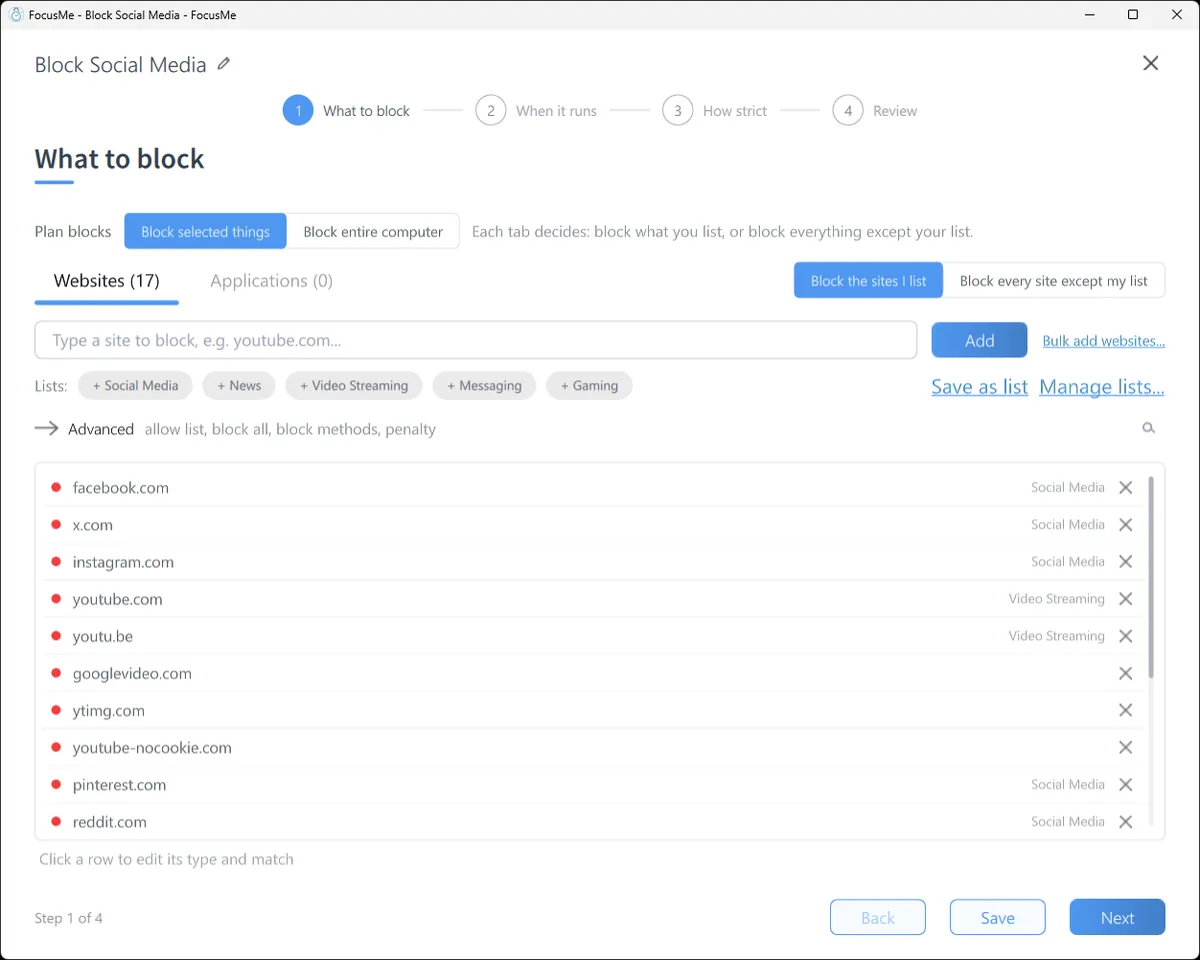
Start the same way each time. Open the Plans tab, click Add a Plan and name it. On What to block, type each site into the add row and click Add, or click a ready-made list such as social media, news or video streaming to load a set in one go. Then click Next.
For an hour: the Quick Timer
- On When it runs, choose Quick Timer and leave the rule mode on Block.
- Set the Session duration to one hour. The +10m and +30m buttons add time quickly.
- Click Next, pick how strict, then click Create & Enable on Review.
- Whenever you need the block, press play on the plan in the Plans list. The start dialog asks how long this session should be. Click Start.
The sites are blocked in every supported browser on the computer, private windows included. A small floating timer shows the time left. When it reaches zero the plan stops by itself and the sites open again. Nothing to undo, nothing to remember.
Two options are worth knowing. Delay before start gives you a few minutes to finish what you are doing before the block lands. And if the hour goes well, right-click the plan and choose Extend Time. A running session can be made longer, never shorter.
For a day
The same Quick Timer does it. The session duration has day, hour and minute steppers, so a block until this evening is an eight-hour session, and a full day off a site is one day.
For anything longer than a work session, check Countdown when computer asleep/shutdown. The timer then keeps counting while the computer is asleep or off, so the block ends at the time you meant, not later.
For work in sprints: Pomodoro
If you would rather work in short bursts, choose Pomodoro on the same step. Set how many focus periods you want and how long each one is, with short breaks between. The sites are blocked during each focus period, and the run ends after the last one.
Until an exam: a Weekly Schedule with an end date
Three weeks of exam prep is not one long timer. It is the same study hours every day, and then it is over.
- On When it runs, choose Weekly Schedule.
- Pick the days, then drag on the timeline to mark your study hours. The preset chips fill in common schedules in one click.
- Check Set end date and pick the day of your last exam. The plan expires after that day.
- Click Next, pick how strict, then click Create & Enable on Review.
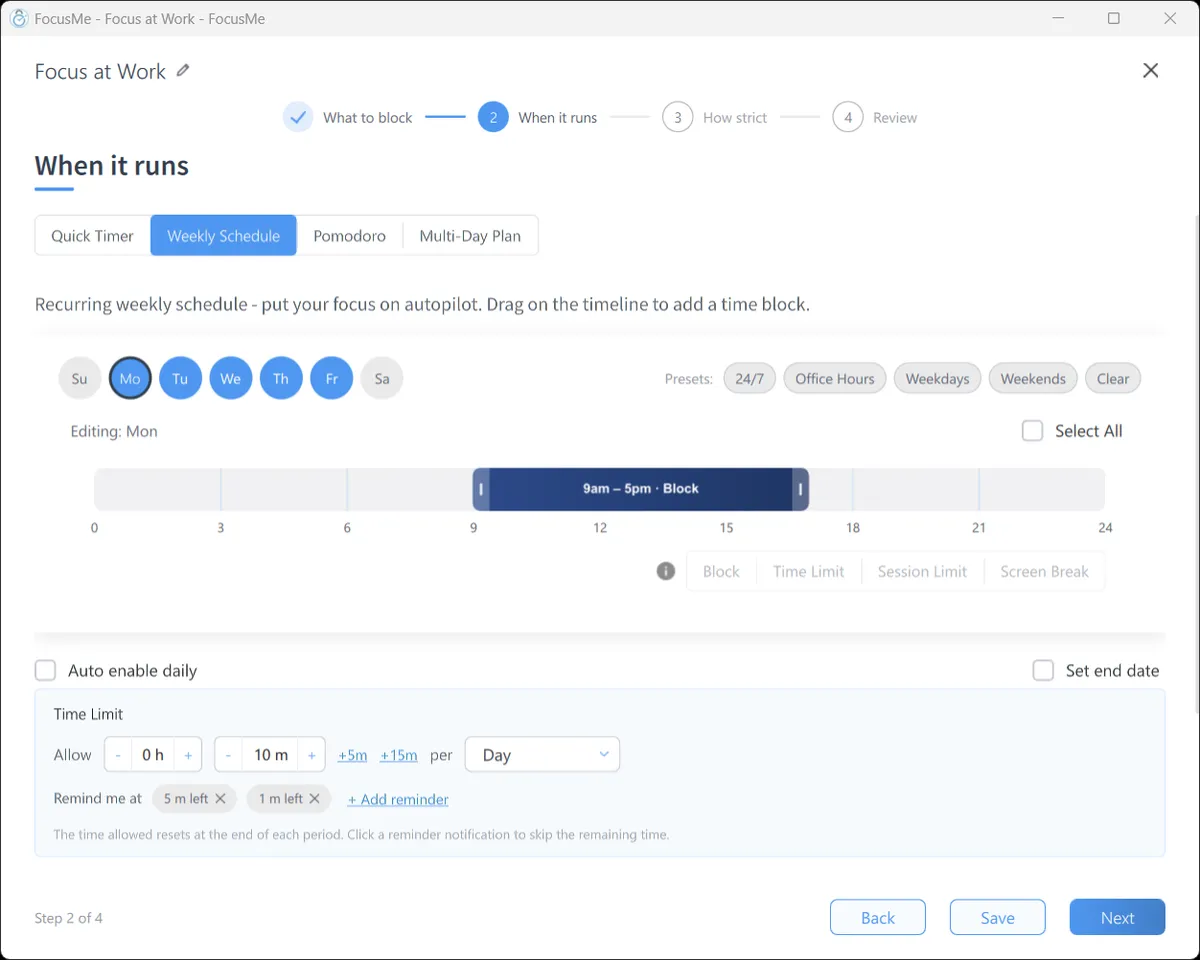
The plan starts and stops by itself each day, and after the end date it stops for good. There is more on blocking during certain hours in this guide to scheduled blocking.
You do not have to ban everything for the whole stretch. Each block of hours on the timeline can have its own rule mode. A Time Limit gives a daily budget; a Session Limit caps how many times you open it and how long each visit lasts, with a wait between. So social media can be fully blocked during study hours and capped at 30 minutes in the evening.
If every day of your exam prep looks different, a Multi-Day Plan gives each day its own schedule and ends after the last day. For more on the study side, see how to block social media while studying and FocusMe for students.
On your phone
FocusMe for Android and iPhone both have the Quick Timer and the Weekly Schedule, for apps as well as websites. On Android the Weekly Schedule can take an end date too. On iPhone a timer runs for at least 15 minutes. With FocusMe Premium, sign in with the same account and plans sync between your computer and your phone.
Make it stick
A temporary block only helps if it lasts as long as you said it would. The How strict step decides that. On the computer there are four choices.
Unlocked blocks just the same, but stopping is one click. Good for a first day, to check the plan blocks the right sites at the right times.
Gentle asks for eight random characters before the plan stops: a decision, not a reflex. Strict asks for 25 characters typed perfectly, then a ten-minute wait.
Or commit. Enforced Mode means the plan runs to its end; while it runs it cannot be stopped or weakened, only made stricter. This is where a temporary block and a strict one fit together well. Because the plan has an end you chose in a calm moment, you can commit to it fully: one hour, one day, or until the last exam, and then it is done.
Before you enforce a Weekly Schedule, set its end date first, and run the plan unlocked for a day to be sure it does not block something you need for your course. Why a rule set in advance beats deciding in the moment is covered in website blocker vs willpower.
Block websites with FocusMe
Block websites for as long as you choose
Websites and apps on Windows, Mac, Linux, Android and iPhone. Schedules, time limits, and protection that holds until the time you set.
Start your free 14-day trialNo credit card needed. How the website blocker works
Frequently asked questions
How do I block a website for one hour?
Make a FocusMe plan with the site on its block list, choose Quick Timer, set the session duration to one hour and press play. The site is blocked in every supported browser on the computer and opens again when the timer runs out.
How do I temporarily block websites for studying on a computer?
For a single study session, use a Quick Timer or a Pomodoro plan. For a whole exam season, use a Weekly Schedule covering your study hours and check Set end date. If the problem is more than one website, why you can’t focus when studying covers the rest.
Does the block end by itself?
Yes. A Quick Timer stops when its time is up, a Pomodoro run ends after the last focus period, and a Weekly Schedule with an end date expires after that day. You do not have to remember to switch anything off.
Can I make a temporary block longer once it has started?
Yes. Right-click the running plan and choose Extend Time, or right-click the floating timer and add 5, 10, 15 or 30 minutes. A running session can be lengthened but not shortened.
Is FocusMe free?
FocusMe is paid, with a free trial, and students get 30% off. Current plans are on the pricing page.
Related: The FocusMe website blocker, How to block social media while studying, How to avoid exam burnout.
First published
Want to talk it through? Join the FocusMe community