Prefer to read offline? Download this article as a PDF
Apple Screen Time: How to Monitor and Reduce Smartphone Usage
How to use the Screen Time tools built into every iPhone to see where your day goes, cut the distractions, and get more done
Every iPhone has a set of tools built in for seeing how much you use it and putting limits on that use. Apple calls it Screen Time, and it has grown a lot since it arrived in 2018. In iOS 27 it was redesigned around two ideas: how long you may spend in each kind of app, and when those apps are available at all.
Most people switch it on, glance at the number, wince, and never touch it again. That is a waste, because used properly it can give you back an hour or two a day. Here is what Screen Time can do, seven ways to turn it into a productivity tool, and where it falls short.
What Is Apple Screen Time?
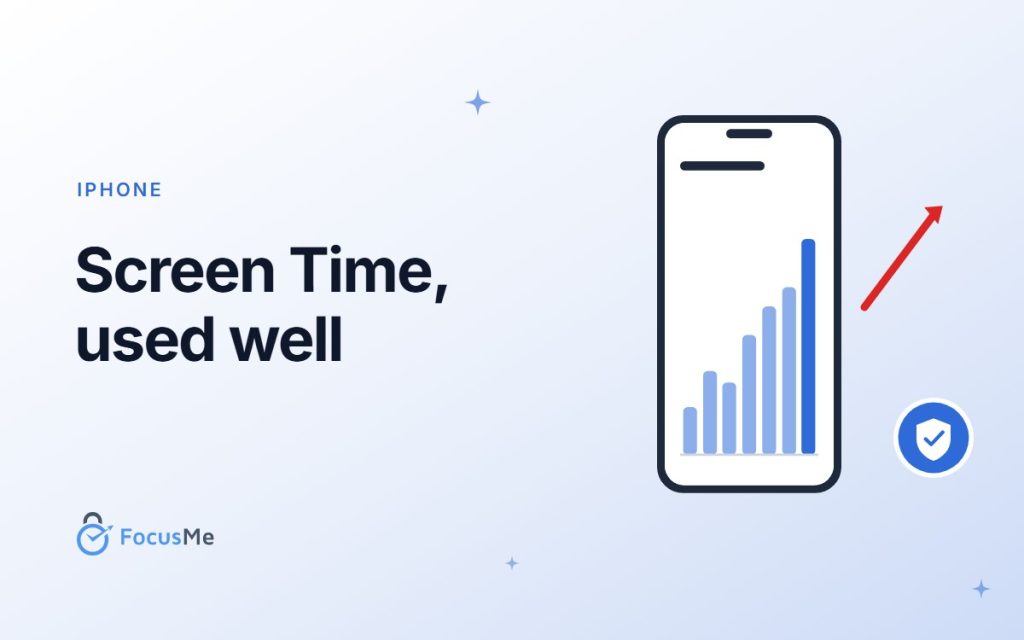
Screen Time lives in Settings on your iPhone and iPad. Switch on App & Website Activity and it starts recording how long you spend in each app and on each website, how many times you pick the phone up, and how many notifications arrive and from where. You can read the report for today or for the week, and drill down from a category such as Social Media to the individual apps inside it.
On top of the report sit the controls:
- Time Allowances give you a daily budget for the whole phone and for categories of apps, such as Entertainment, Games and Social Media. You can make your own categories and move apps between them, and an allowance covers an app’s website as well as the app.
- Screen Time Schedule divides your day into time windows and decides which categories are available in each one. You pick the days a schedule covers, so weekdays and weekends can differ.
- Always Allowed is the list of apps and people that stay reachable whatever your schedule says.
- Allowed Contacts limits who can reach you in Phone, FaceTime and Messages.
- Content & Privacy Restrictions filters content and holds Screen Distance, which warns you when the phone is held too close to your face.
- Lock Screen Time Settings adds a passcode so the settings cannot be changed without it.
- Share Across Devices combines your iPhone, iPad and Mac into one report and one set of limits.
If your phone is still on iOS 26 or earlier, the same tools are there under their old names: App Limits instead of Time Allowances, and Downtime instead of a Screen Time Schedule. They work in much the same way.
Screen Time is also how parents manage a child’s iPhone through Family Sharing, with suggested allowances by age, approval for new websites and contacts, and a pause button for the whole device. This article is about using it on your own phone.
7 Ways to Use Screen Time to Boost Your Productivity
1. Read the Report Before You Change Anything
Open Settings, tap Screen Time, then tap your daily average. Switch to the weekly view and look at three things: your most used apps, how many times you picked the phone up, and which apps send the most notifications.
Be honest about what you find. Most of us underestimate our phone use by a wide margin, and the pickup count is usually the real shock. The apps at the top of the list, and the apps behind most of the pickups, are the ones the rest of this list should target.
2. Set Goals You Can Measure
Think about why you want to limit your phone. Are you checking a news feed every hour at work? Does a quick look at Instagram at lunch turn into forty minutes? Could you take on more if you had an extra hour a day?

Then make the goal specific and measurable, because Screen Time will measure it for you. “Social Media under 45 minutes a day” or “no pickups between 9 and 11” beats “use my phone less”. Start small; you can tighten the limits once the first ones stick.
3. Give Your Distractions a Daily Allowance
Go to Time Allowances and set a budget for the categories that eat your time, usually Social Media, Entertainment and Games. If one app is the real problem, put it in a custom category of its own so it gets its own limit rather than sharing the budget with everything else.
Screen Time warns you as the time runs down, then blocks the app with a message when it is gone. The limit resets at midnight, so plan your allowance for the day, not for the morning.
4. Build a Schedule Around Your Working Day
A daily allowance stops you overdoing it; a schedule stops you starting. In Screen Time Schedule, add a schedule for your working days and give it a window, say 9 am to 6 pm, in which only the categories you need for work are available. Add a second schedule for the evening if your phone keeps you up.
Keep Match Screen Time Schedule switched on in Time Allowances so your budgets follow the windows you set. Phone calls and anything on your Always Allowed list keep working, so you will not miss anything that matters.
5. Trim the Always Allowed List
Always Allowed is where good intentions leak. Messages are always allowed by default, and it is tempting to add Safari, Mail or a chat app “just in case”. Every app you add is an app that your schedule no longer covers.
Keep the list to what you genuinely need at any hour, such as Phone, Maps and Messages, and use Allowed Contacts if a handful of people need to reach you while everyone else waits.
6. Close the Ignore Limit Loophole
Here is the weak spot. When an allowance runs out, the block screen offers an Ignore Limit button, and a tap gives you fifteen more minutes, an hour, or the rest of the day. Screen Time is built to advise an adult, not to stop one.
You can make that button harder to press. Under Manage Screen Time, choose Lock Screen Time Settings and set a Screen Time passcode. From then on, Ignore Limit asks for the code first. The catch is that it only works if you cannot type the code from memory, so ask a partner or a friend to set it and keep it, or use a tool that is built to hold the line (see below).
7. Share Across Devices and Review Weekly
If you have an iPad or a Mac on the same Apple Account, switch on Share Across Devices under Manage Screen Time. Otherwise the limit on your iPhone just moves the scrolling to the iPad. With it on, your allowances, schedules and reports cover every device together.
Then put ten minutes in your calendar each week to read the report again. Limits are never set in stone: if an allowance is being ignored every day, it is the wrong allowance. Tighten what is working and rethink what is not.
Where Screen Time Falls Short
Screen Time is free, already on your phone, and the best place to start. It also has limits of its own:

- Its limits are easy to lift. Ignore Limit is always a tap away, and a passcode you set yourself is a passcode you know.
- Allowances are by category. Blocking one website, or one app for one hour, means building a custom category first.
- It only covers Apple devices. Your Windows PC or Android tablet are not in the report and not in the schedule.
- It tracks the phone, not the task. It can tell you Safari took two hours, but not whether that was work or YouTube.
FocusMe for iPhone: When You Need the Limits to Hold
FocusMe for iPhone is built on Apple’s own Screen Time framework, so it is enforced by iOS itself and keeps working even when the app is closed. It lets you pick the exact apps and websites to block, or whole categories, and run them on a Quick Timer or a weekly schedule, overnight included. A Time Limit gives a daily budget; a Session Limit caps how many times you open it and how long each visit lasts, with a wait between.
FocusMe
Block the sites and apps that pull you off track, on a schedule or a timer, on your computer and phone.
Try it free for 14 daysYou choose how strict the plan is, from Unlocked to Lock it Down. Gentle Guidance asks you to type 5 random characters to stop; Lock it Down asks for 25, typed perfectly. The Activity tab shows your app usage and what FocusMe blocked, and your Screen Time data never leaves your phone.
It is free to download and blocking, schedules and time limits need no account. If you already use FocusMe on Windows or Mac, sign in with the same account and FocusMe Premium syncs your plans and activity between your computer and your phone, so the schedule that blocks social media at your desk blocks it in your pocket too. Try it free for 14 days.
Whichever tool you use, the help you need to reduce your screen time is already in your hand. Whether you use it to change your digital habits is entirely up to you.
FocusMe
Make the focused hour the normal one
Block the sites and apps that pull you off track, on a schedule or a timer, on Windows, Mac, Linux, Android and iPhone.
Start your free 14-day trialNo credit card needed.
FAQs (Frequently Asked Questions)
What is Apple Screen Time?
Apple Screen Time is a built-in iPhone and iPad feature that helps users monitor and manage their device usage. It provides detailed reports on how much time you spend on apps, websites, and categories, allowing you to make more informed decisions about your digital habits.
How do I enable Screen Time on my iPhone?
Go to Settings > Screen Time and turn on App & Website Activity. From there, you can view usage reports, set Time Allowances, build a Screen Time Schedule, and configure parental controls.
Can Screen Time help improve productivity?
Yes. Screen Time can help improve productivity by showing where your time is being spent and allowing you to set limits on distracting apps such as social media, games, or entertainment platforms. This can help you stay focused on work and important tasks.
What are Time Allowances in Screen Time?
Time Allowances (called App Limits before iOS 27) give you a daily time budget for app categories such as Social Media, Games and Entertainment, and for the phone as a whole. Once you reach the allotted time, the app is blocked unless you choose to ignore the limit.
What is a Screen Time Schedule and how does it work?
A Screen Time Schedule (called Downtime before iOS 27) lets you set time windows in which only selected app categories, Always Allowed apps and phone calls are available. It is useful for reducing distractions during work hours, family time, or before bed.
Can I track my screen time across multiple Apple devices?
Yes. If you use the same Apple ID on multiple devices, you can enable Share Across Devices in Screen Time settings to view combined usage reports from your iPhone, iPad, and other Apple devices.
How accurate is Apple’s Screen Time data?
Screen Time provides a reliable overview of your digital activity by tracking app usage, device pickups, notifications, and website visits. While it may not capture every interaction perfectly, it offers valuable insights into your overall screen habits.
Can Screen Time help reduce phone addiction?
Screen Time can be an effective tool for reducing excessive phone use by increasing awareness of your habits and providing features such as time allowances and schedules. However, lasting behavior change often requires consistent effort and additional focus strategies.
What is the difference between Screen Time and Focus Mode?
Screen Time primarily tracks and limits device usage, while Focus Mode helps minimize interruptions by filtering notifications and controlling which apps and contacts can reach you during specific activities such as work, sleep, or personal time.
Is Apple Screen Time enough to eliminate digital distractions?
Screen Time is a helpful starting point, but some users may need additional tools for stronger accountability and distraction blocking. FocusMe for iPhone adds blocking of the exact apps and websites you choose, session limits, and strictness levels that make a plan much harder to stop.
Want to talk it through? Join the FocusMe community