
Prefer to read offline? Download this article as a PDF
Have you ever sat in front of your computer for hours, lost in work, only to realize you forgot to drink water or even blink properly? It’s something many of us do without noticing. We push through tiredness, ignore body signals, and keep telling ourselves, “Just five more minutes.”
Most people use FocusMe to block distractions like social media or games. But one of its most powerful tools isn’t about working harder. It’s about knowing when to stop.
FocusMe calls the feature a Screen Break; with the Lock it Down preset it is enforced, which is why people call it the forced break. Let’s break down what the Screen Break feature does, why it’s so good for your brain and body, and how you can use it to build healthier work habits.
What Is the Screen Break Feature?
The idea is simple: after working for a set amount of time, let’s say 50 minutes, you’re locked out of your computer for 10 minutes. No shortcuts, no excuses. You’re forced to pause.
During that time, you can’t open apps, browse the web, or check emails. Instead, you’re encouraged to stand up, stretch, walk, or simply step away from the screen.
At first, this might sound frustrating, but that small gap between work sessions can make a huge difference in how you think and feel throughout the day.
Why We Struggle to Take Breaks
You have probably told yourself, I’ll take a break after I finish this task. But that one more thing often turns into two hours of continuous work.
Here is why it happens:
- We confuse busyness with productivity.
- We fear losing focus if we stop.
- We underestimate how tired our brains actually are.
The Screen Break feature removes that decision completely. You don’t have to choose whether to rest; it makes the choice for you. And that’s the beauty of it.
The Science Behind Taking Breaks
Most people can only hold deep focus for somewhere between an hour and 90 minutes. Beyond that, performance starts to drop.
Short and regular breaks help in several ways:
- Sharper focus: taking a pause resets your attention and helps you return with a clear mind.
- More creativity: when you stop consciously working, your subconscious keeps processing ideas, often leading to creative breakthroughs.
- Less stress: step away for even a few minutes and you come back calmer.
- Better memory and learning: your brain stores information more effectively after rest periods.
So, stepping away isn’t lost time; it’s an investment in your next productive hour.
How to Set Up the Screen Break in FocusMe
Setting up a screen break takes a couple of minutes, even if you are new to FocusMe. In current versions it is the Screen Break rule mode, and the whole thing is one short wizard.
Step 1: Add a plan and name it
Open FocusMe, click Add a Plan and give it a name you will recognize later, such as Screen Breaks.
Step 2: Choose when it runs
On the When it runs step, choose Weekly Schedule, then click the Office Hours preset if you only want breaks during the working day, or 24/7 if you want them whenever you are at the computer.
Step 3: Set the rule mode to Screen Break
Select a block on the timeline and set its rule mode to Screen Break. A sentence row appears underneath where you fill in the numbers:
- Break every: how many minutes of active computer use before a break starts, for example 45 m.
- for: how long the break lasts, for example 5 m.
- skippable after: the minimum a break must run before it can be skipped at all. Set it to 0 for no minimum.
- Warn me: a reminder this many minutes before the break, so you can finish your sentence rather than being cut off mid-thought.
The settings row looks the same whichever timing mode you are on; the screenshot below happens to show it on a Quick Timer plan, but the fields are identical on a Weekly Schedule.
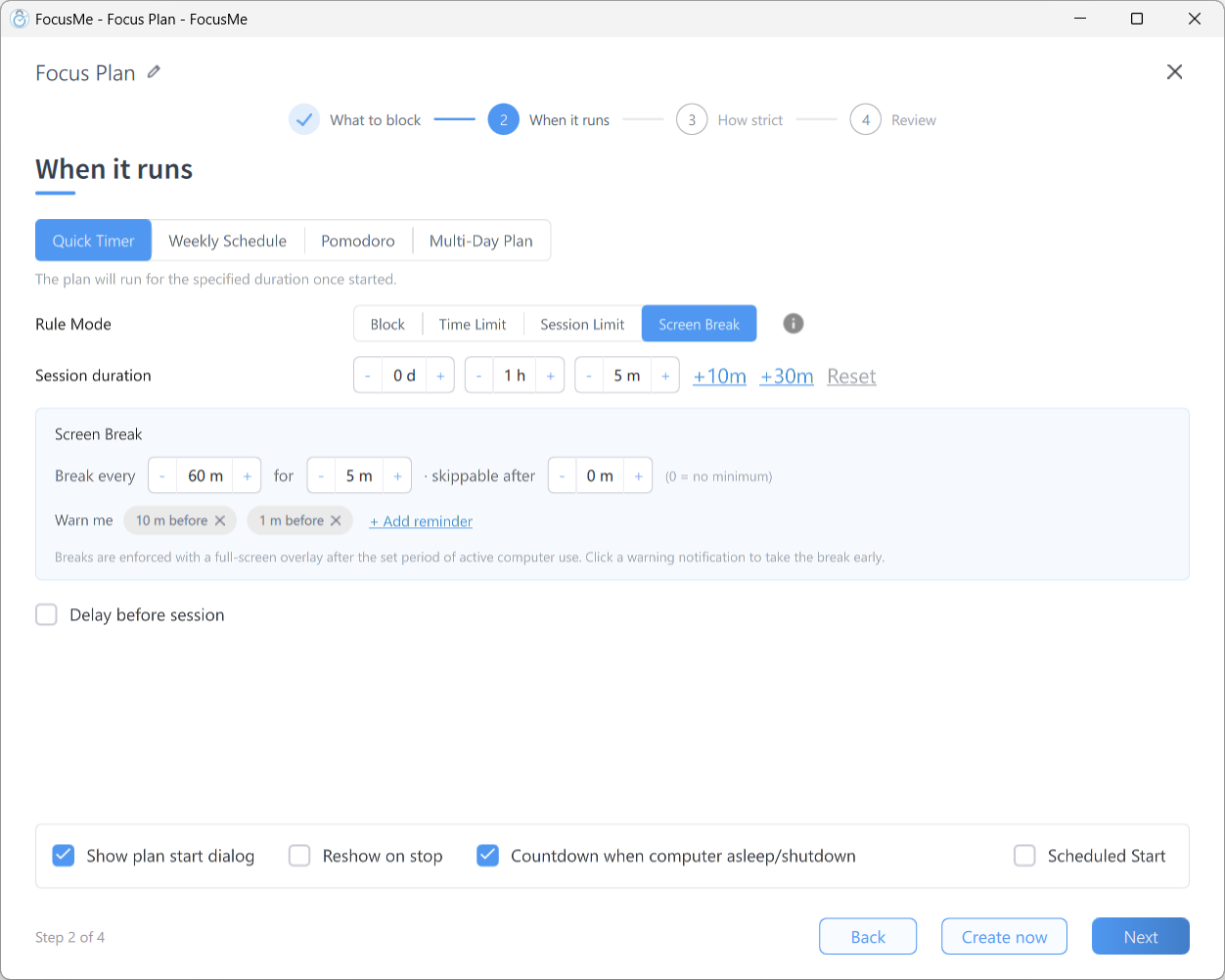
One detail worth knowing: the counter only advances while you are actually using the computer. Time spent away from the keyboard is not counted against you, so a plan set to 45 minutes will not fire a break the moment you sit back down from lunch.
Step 4: Decide how hard it is to skip
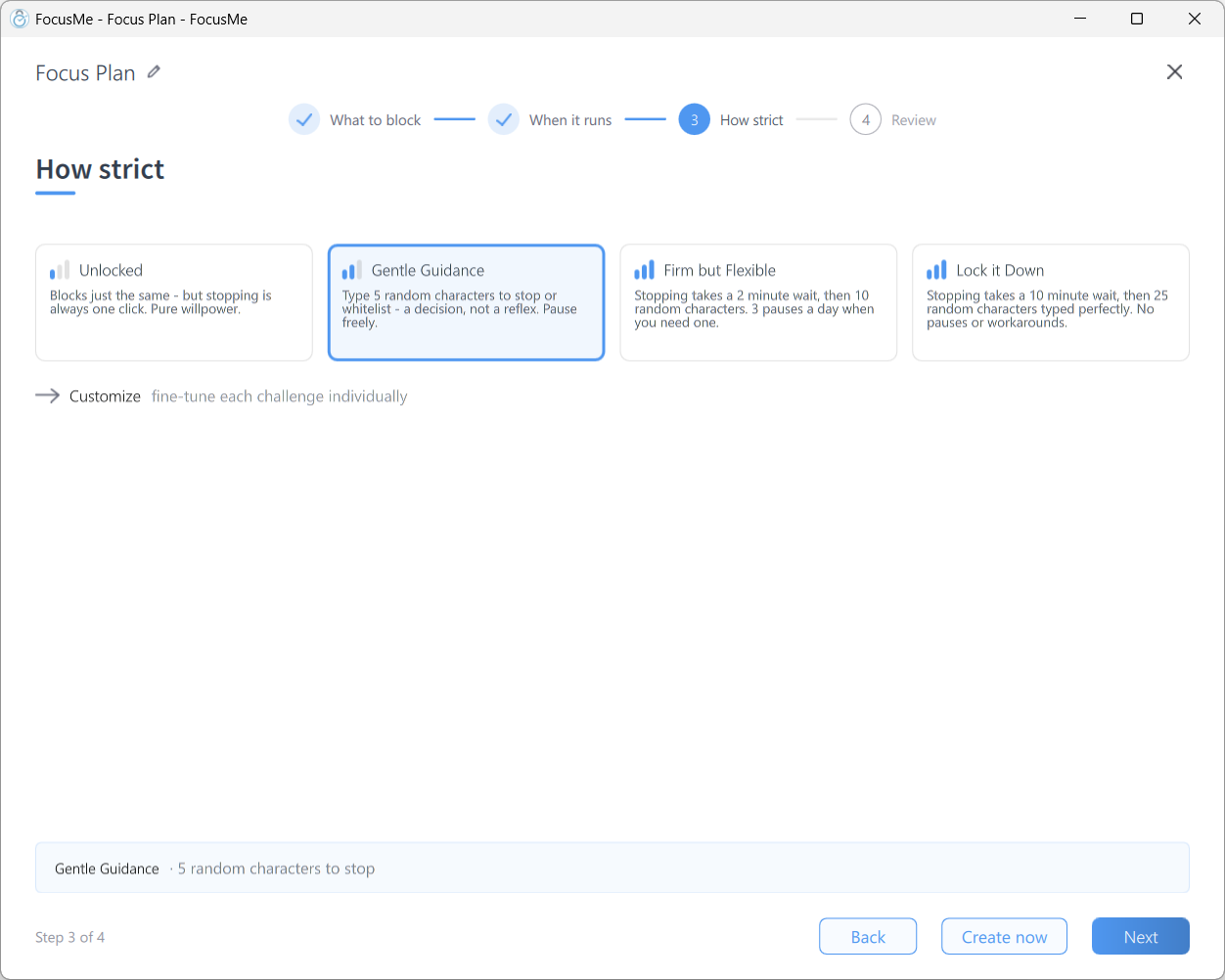
Click Next and pick a How strict preset. This is the step that decides whether a screen break is genuinely forced:
- Gentle Guidance: asks you to type 5 random characters to skip.
- Firm but Flexible: asks for 4.
- Lock it Down: does not allow skipping at all.
If you want your own mix, click Customize and look at Skip break. You can set it to Unprotected, Random, Password or Disallowed, and use Skip limit (Per day) to cap how many breaks you are allowed to skip in a day, which is often the more useful setting, because it lets you skip the one break that genuinely clashes with a meeting without letting you skip every break.
Step 5: Review and enable
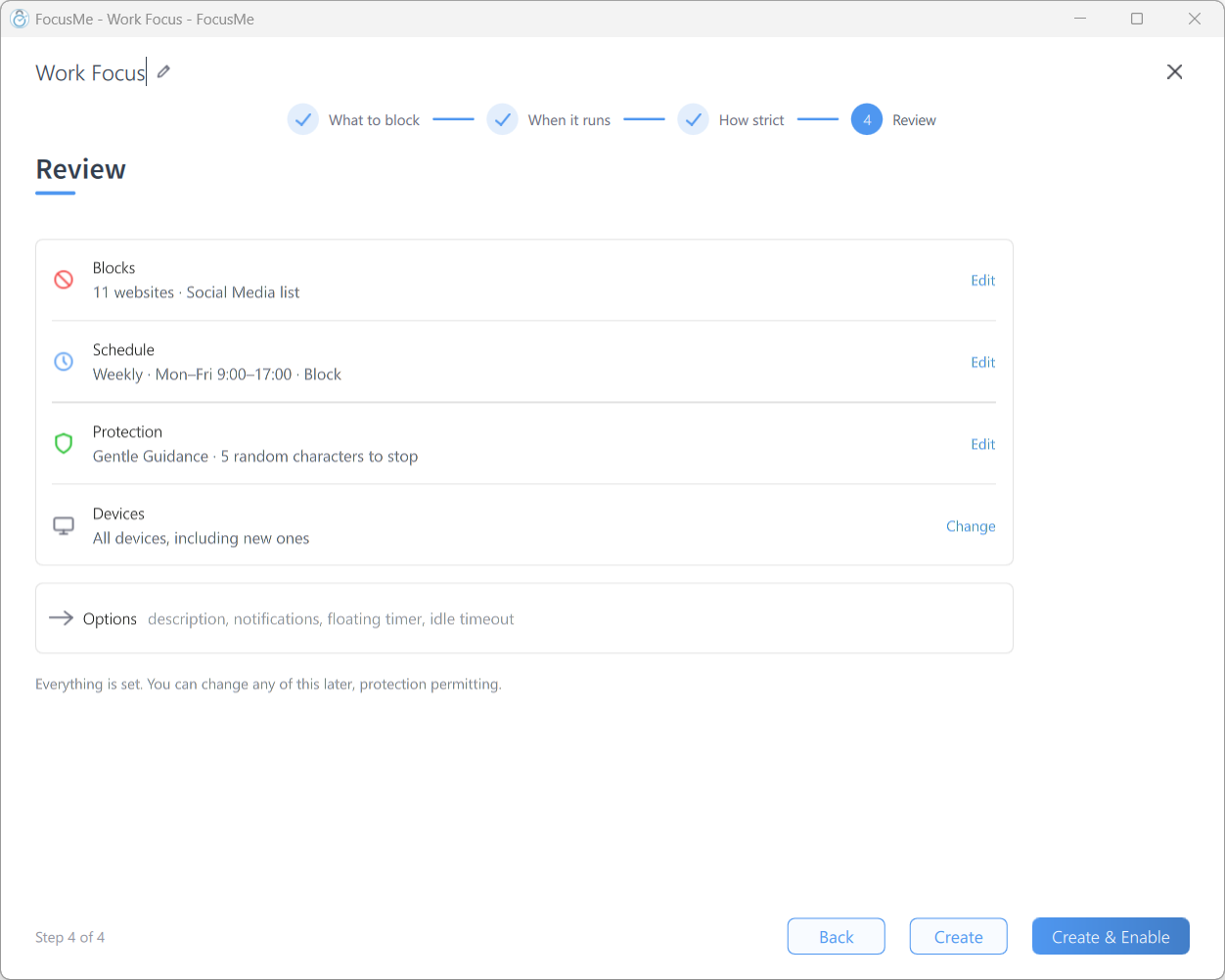
The last step shows you what the plan will do. Click Create & Enable and it starts working straight away.
What a break actually looks like
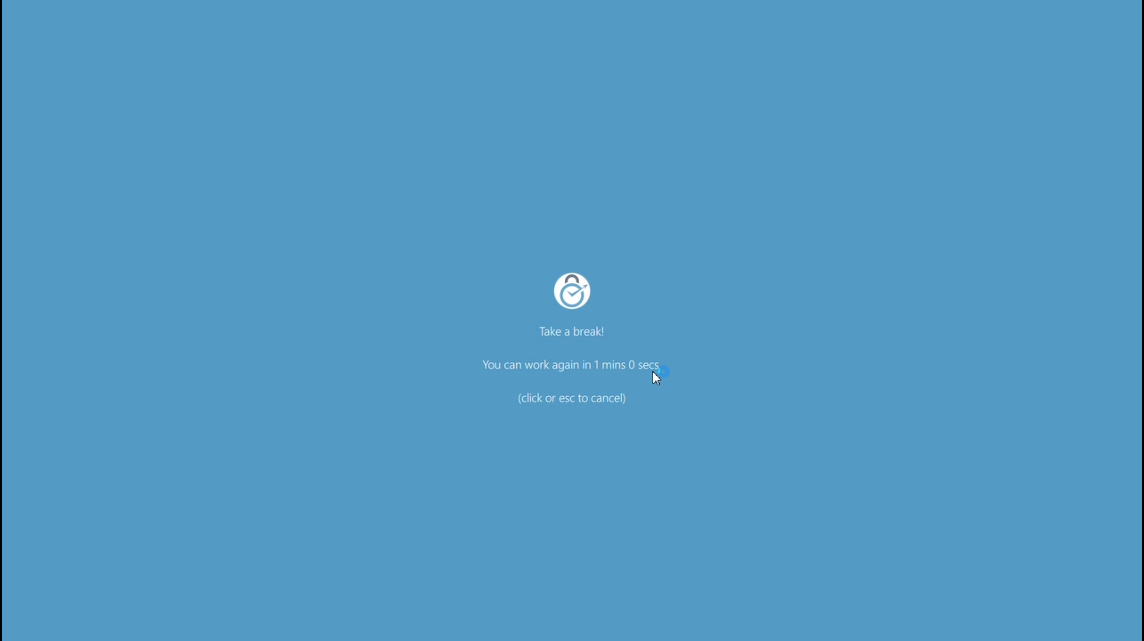
When the break starts, a full-screen overlay covers the display with a countdown. Nothing is closed and nothing is lost: everything keeps running in the background, and when the countdown ends the overlay disappears and your work is exactly as you left it. If you set a skippable after minimum, the screen shows how long until skipping becomes available, and the Skip Break button only appears once it does.
A screen break plan runs independently of your blocking plans, so a social media block on a weekly schedule and a screen break every 45 minutes will happily run side by side without interfering with each other.
Step 6: Decide What to Do During the Break
Plan ahead. Don’t replace computer time with phone scrolling. Use the break to move, hydrate, or relax your eyes.
Here are a few ideas:
- Stand up and stretch.
- Take a short walk around your room.
- Do light exercises like shoulder rolls or squats.
- Look outside a window and rest your eyes.
- Drink water or have a snack.
These actions may seem small, but together they make a big difference to your energy levels.
Step 7: Track How You Feel
After using Screen Breaks for a week, notice your changes: better focus, fewer headaches, more creativity, or just less stress. Most users start seeing positive effects within a few days.
Why Screen Breaks Feel “Hard” at First
When you first use this feature, it can be annoying. You might be mid-idea or halfway through an email when the screen locks. But that frustration is a sign that you’ve been overworking without noticing.
Think of it like a gym workout. The first few sessions feel tough, but your body adapts. The same happens with mental endurance; your focus improves when you train it to rest on time.
Within a week or two, you’ll start appreciating those breaks. They’ll feel like rewards instead of interruptions.
The Physical Benefits of Taking Breaks
Sitting for long hours affects more than your mind. It also hurts your body in subtle ways: stiff neck, sore shoulders, tired eyes, or back pain.
Using FocusMe’s Screen Breaks encourages small but effective physical movements. Each time your computer locks, you’re reminded to stand, stretch, or move.
Here are quick, healthy things you can do in 10 minutes:
- Stretch your arms, shoulders, and legs.
- Roll your neck gently.
- Blink slowly to relax your eyes.
- Walk around your home or office.
- Breathe deeply for a minute or two.
These small actions help improve blood circulation, reduce fatigue, and keep your body from stiffening up.
Tips to Make Screen Breaks Work for You
- Start small. Try two or three breaks a day, then add more once you get used to it.
- Stay consistent. Make breaks part of your routine so your brain starts expecting them.
- Avoid your phone. Don’t switch from one screen to another. Let your eyes rest.
- Use reminders. The Screen Break settings let you write your own messages for the break screen, such as Time to recharge or You deserve this pause.
- Combine with other FocusMe tools. Block distracting websites during work sessions for even better focus.
What to Do With a Short Break
How you spend a break matters as much as taking it. These pay back the most:
- Move. If you sit all day, stand up and walk, even round the room. Holding one posture for hours loads some joints and muscles while others go unused.
- Step back from the task. Think about something else for a few minutes. You come back with fresh eyes, and you may spot that you were heading the wrong way; moving fast in the wrong direction gets you nowhere.
- Talk to someone. Two minutes with a colleague builds the kind of working relationship that makes it easier to ask for help later.
- Play a song or two. With headphones on, a couple of favorite tracks take you out of the room without leaving it, and you are ready to go again.
If you can only hold focus for 30 minutes, work for 25 and rest for 5. And if you work from home, don’t let five minutes turn into an afternoon of Netflix: keep streaming sites blocked during your work hours.
Final Thoughts
At first, the “Screen Break” protocol in FocusMe might feel like a strict teacher. But give it a chance, and it becomes your best ally. It teaches you a valuable truth: productivity isn’t about nonstop effort; it is about knowing when to step away.
When you rest on time, your focus sharpens. Your creativity grows. Your body thanks you. So the next time we lock your screen, don’t get frustrated. Use those ten minutes to stretch, breathe, or move. You’ll come back stronger, clearer, and ready to do your best work. Sometimes, the smartest way to keep going is to stop just for a little while.
FAQs (Frequently Asked Questions)
What is the Screen Break feature in FocusMe?
It’s a tool that locks your computer after a set work period, forcing you to take a real break.
How does the Screen Break help with focus?
It resets your attention and helps your brain recharge, so you return sharper and more productive.
Can I skip a Screen Break once it starts?
Not if you chose Lock it Down, or set Skip a break to Disallowed under Customize. Then you wait until the break timer ends.
How long should each break be?
Most people use a 50-minute work / 10-minute break cycle, but you can adjust it to suit your routine.
What should I do during the break?
Move, stretch, hydrate, or rest your eyes; just stay away from screens.
Is the Screen Break feature good for my health?
Yes. It helps reduce eye strain, muscle tension, and stress while improving mental clarity.
Can I use the Screen Break feature on specific days?
Yes. You can schedule it to run only on selected days, like weekdays.
Why do Screen Breaks feel frustrating at first?
Because you’re used to pushing through fatigue, but once your body adapts, the breaks start to feel refreshing.
How soon will I notice results?
Many users feel more focused and less tired within a week of using regular breaks.
Can I combine Screen Breaks with other FocusMe features?
Absolutely. Use it alongside website and app blockers for better productivity and healthier habits.