Windows has no setting that blocks a website for you. It has a text file that can, a parental-control service built for children, and a browser extension store. Each works for a particular person; none works for the person who wants to block a site from themselves, during work, in a way that holds. Here are all three with their real limits, and then the FocusMe way.
The manual ways, and where they fall down
The hosts file, step by step
- Open the Start menu, type Notepad, right-click it and choose Run as administrator.
- Choose File, Open, set the file type to All Files and open
C:\Windows\System32\drivers\etc\hosts. - At the end, add one line per site:
127.0.0.1 www.reddit.com, then127.0.0.1 reddit.com, and so on. Save.
The site now fails to load in every browser on the PC. The limits: you need administrator rights; each site needs its mobile and alternative addresses listed too; there is no schedule, so the block is on at 11am and at 11pm alike; nothing stops you opening Notepad again; and if the site was open already, the browser’s cache may keep serving it for a while.
Microsoft Family Safety
For a child’s Microsoft account, a parent can turn on web and search filtering and block or allow specific sites. The filtering works in Microsoft Edge, and Windows blocks other browsers on the child’s account while it is on. It is a parent’s tool for a child’s account; it does nothing for an adult blocking themselves, and the parent’s account is the one that approves exceptions.
Browser extensions
A blocker extension from the Chrome Web Store or the Edge Add-ons store blocks sites in that one browser. It switches off from the extensions page, it is off in private windows unless you allow it, and Firefox is one click away.
Block websites on Windows 11 with FocusMe
FocusMe is a website and app blocker for Windows 10 and 11. One plan blocks a site in Chrome, Edge, Firefox, Brave and Opera alike, on a schedule, with protection you choose.
Make the plan
- Install FocusMe and open the Plans tab. Click Add a Plan and name it.
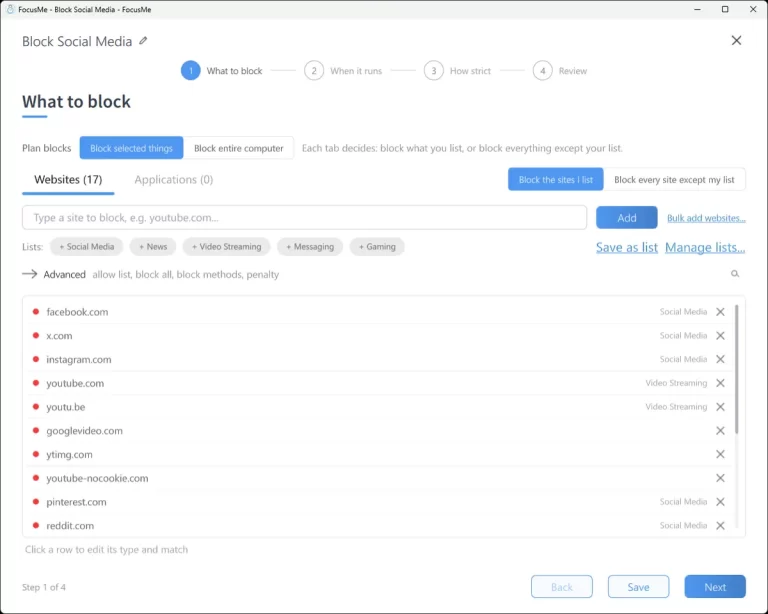
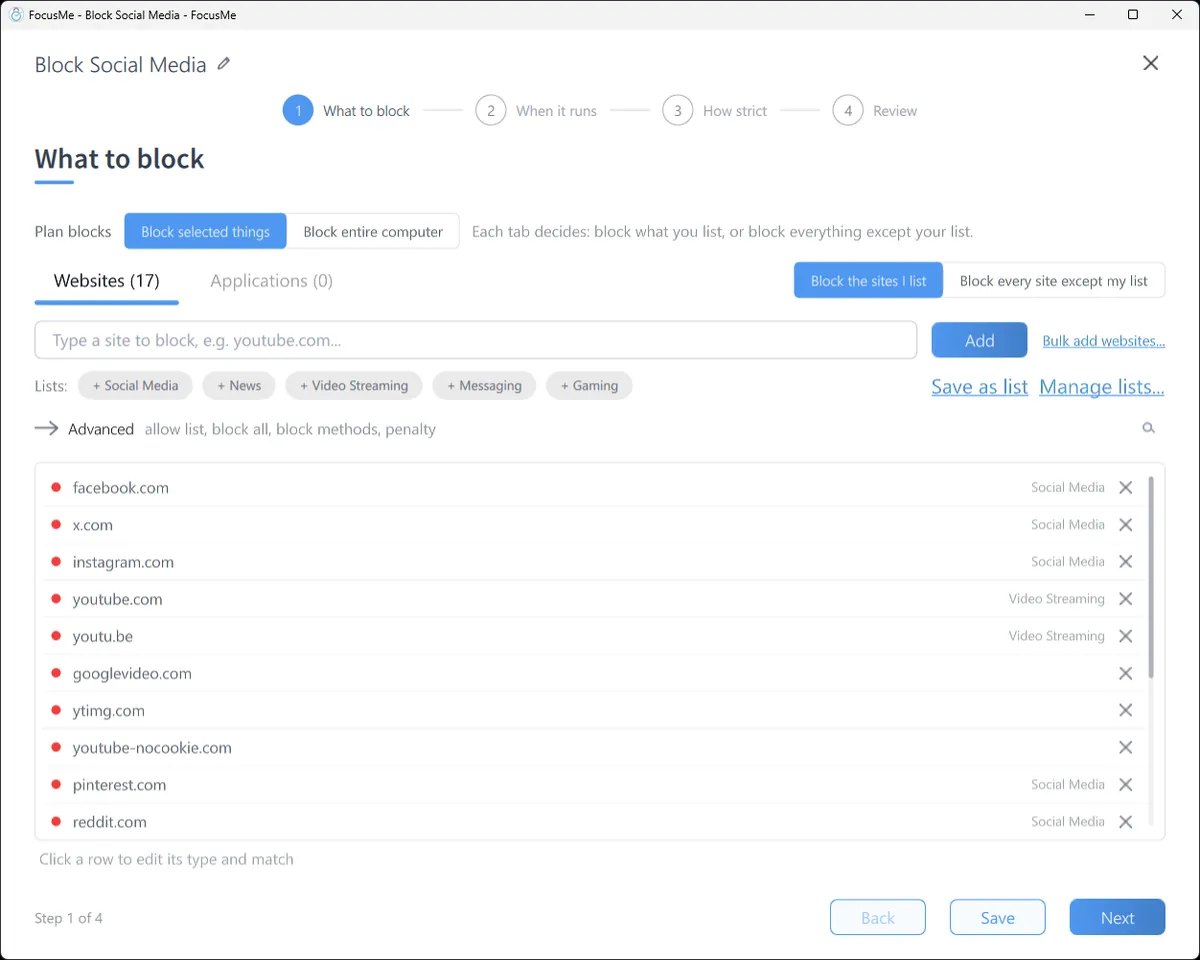
- On What to block, type each site into the add row and click Add. A domain covers its subdomains, so
reddit.comcoversold.reddit.com. Or click a ready-made list (Social Media, News, Video Streaming, Messaging, Gaming) to load a set in one go. A path such asyoutube.com/shortsblocks one part of a site and leaves the rest. - Click Next. On When it runs, choose a Quick Timer for now, or a Weekly Schedule such as 9 to 5 on weekdays.
- Click Next, pick how strict, and click Create & Enable.
Open a blocked site and you see the FocusMe block page instead, in whichever browser you tried, private windows included. Install the free FocusMe extension for Chrome, Edge and Firefox when FocusMe offers it: it makes URL detection faster and more precise. Without it, FocusMe still closes the tab.

Block everything except what you need
For deep work, flip the switch beside the tabs to Block every site except my list and allow only your work tools: docs, email, the ticket system. Add accounts.google.com or login.microsoftonline.com if your tools sign in through them.
Limit instead of block
On When it runs, set an interval’s mode to Time Limit (30 minutes of social media a day) or Session Limit (three visits of ten minutes, with a wait between). FocusMe counts the time you actually spend, and blocks the sites when the budget is spent until the next period.
Windows only: the network block
In the plan’s Advanced panel, the website block action can be set to Network block, which stops the site loading at all on this PC, whichever app opens it. It needs the standard (administrator) installation.
Make it stick
Give it a schedule. A plan that starts at 9 by itself removes the daily decision. You made it once.
Pick how strict. Gentle Guidance asks for five random characters before a plan stops: a decision, not a reflex. Firm but Flexible adds a wait and three pauses a day. Lock it Down means 25 characters typed perfectly and a ten-minute wait, no pauses.

Or commit. Enforced Mode means the plan runs to its end; while it runs it cannot be stopped or weakened, only made stricter. On Windows, a plan can also keep Windows Settings and Task Manager closed while it runs, and the Extra Protection Service keeps FocusMe running through restarts.
Frequently asked questions
Does it block websites in every browser on Windows 11?
Yes. Chrome, Edge, Firefox, Brave, Opera and any other browser on the PC, private windows included. Switching browser changes nothing.
Can I block websites without administrator rights?
Yes. The FocusMe non-admin installer installs for your user on a work or school account. The network block action needs the standard installation.
Can I block a site only during work hours?
Yes. Draw the hours on the weekly schedule and the plan starts and stops by itself.
Can I block part of a site?
Yes. Add a path such as youtube.com/shorts or reddit.com/r/gaming, or block the site and put the section you need on the allow list.
Related: FocusMe for Windows, How to block apps on Windows, The FocusMe website blocker.