Screen Time is the Mac’s built-in answer to blocking an app, and it is a good one for a parent. For an adult blocking themselves, every limit it sets comes with an “Ignore limit for today” button and a passcode they chose. Here is Screen Time step by step with its real limits, then a FocusMe plan that blocks the apps and games you choose, when you choose, with protection that holds.
The manual ways, and where they fall down
Screen Time app limits
- Open System Settings, then Screen Time, then App Limits, and turn it on.
- Click Add Limit, tick an app or a whole category, set the daily time and the days, and add it.
- Under Screen Time, set a passcode so the limits need it to change.
The limits: when the time is up the app offers One More Minute and Ignore Limit, and the passcode that gates them is yours. It is a daily budget, not a schedule, so it cannot say “no Steam before 6pm”. For a child’s Mac managed through Family Sharing, where the parent holds the passcode, it does its job.
Deleting the app
Lasts until the App Store or the download page puts it back, which takes a minute.
Parental controls for other accounts
A managed child account can be limited by an administrator account on the same Mac. It is a control one person applies to another; the administrator is not limited.
Block apps on a Mac with FocusMe
FocusMe for Mac runs on macOS 12 or later, Apple Silicon and Intel. It can block any app or game by name, by its window title, or by a folder, on a schedule, with protection you choose.
Make the plan
- Install FocusMe, grant the Accessibility permission it asks for on first run, and open the Plans tab. Click Add a Plan.
- On What to block, switch to the Applications tab. Type the app’s name (
Steam,Discord,Messages) and click Add, or click Pick from installed apps and tick them from your Applications folder. - Click Next, choose when it runs, click Next, pick how strict, and click Create & Enable.
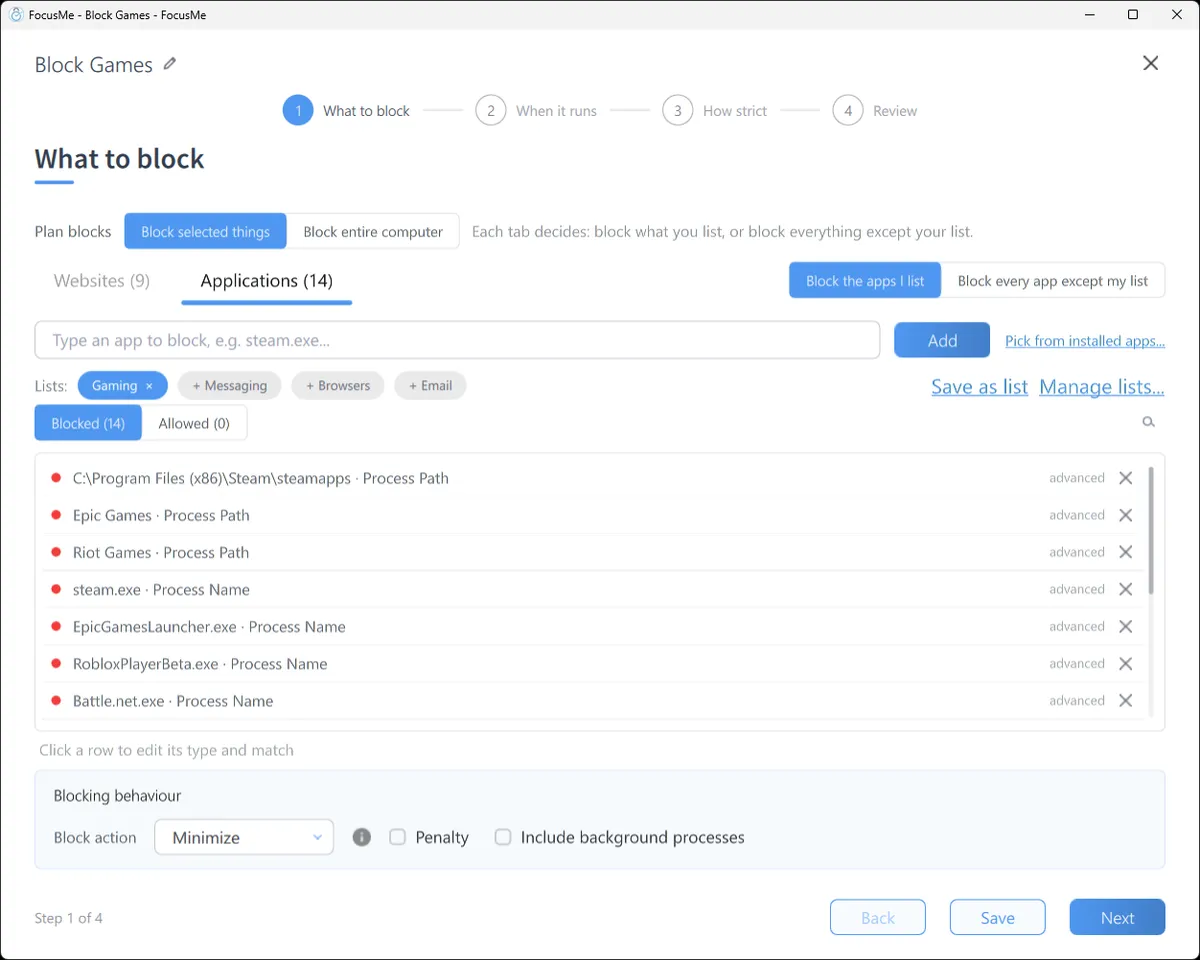
A blocked app is asked to quit the moment it opens, or closed at once if it ignores the request, with a message that says which plan did it. In the plan’s Advanced panel, Close asks nicely and Kill does not; pick Kill for apps that ignore a normal quit.
Part of an app
A Window Title entry matches text in the window’s title, so you can block one game inside Steam, a YouTube tab, or a Discord server without the whole app. These rules are what the Accessibility permission is for; blocking by name works without it. The Helper in the sidebar shows the name and title of every open window, with Add to plan on each.
Games from the App Store and Steam
App Store games are ordinary apps: add them by name. For Steam, block Steam itself to remove every game, or block the games and leave the client: start a game, open Pick from installed apps and tick it on the Running Processes tab.
The whole Mac
Set Plan blocks to Block entire computer and a full-screen break covers everything while the plan runs. A weekly schedule from 11pm to 7am makes it a bedtime for the Mac, and the countdown shows on every Space.
Limit instead of block
On When it runs, set the mode to Time Limit (an hour of Messages a day) or Session Limit (three sessions of ten minutes with a wait between). FocusMe counts the time the app is actually in front of you.
Make it stick
Give it a schedule. Steam blocked until 6pm, Slack and Mail blocked after 7pm: the plan starts and stops by itself.
Pick how strict. Gentle Guidance asks for five random characters before a plan stops: a decision, not a reflex. Firm but Flexible adds a wait and three pauses a day. Lock it Down means 25 characters typed perfectly and a ten-minute wait, no pauses.

Or commit. Enforced Mode means the plan runs to its end; while it runs it cannot be stopped or weakened, FocusMe cannot be quit from the menu bar, and the plan can only ever be made stricter. On a Mac, a plan can also keep Activity Monitor, Terminal and the clock settings closed while it runs, so a schedule ends when it should, and Protect Uninstall keeps the app where it is. If you want a human in the loop, an accountability partner can approve a stop instead of a typing challenge.
Frequently asked questions
Can FocusMe block apps on an Apple Silicon Mac?
Yes. It runs natively on M-series and Intel Macs, on macOS 12 Monterey or later.
Why does it ask for Accessibility permission?
So it can read window titles for rules that match one window or one game. Blocking an app by name works without it.
Can I block an app only in the evening?
Yes. Draw the hours on the weekly schedule and the plan starts and stops by itself.
What if a blocked app keeps reopening?
Set the block action to Kill in the Advanced panel, and open the Helper to add any companion process the app relies on.
Related: FocusMe for Mac, How to block websites on a Mac, Limit gaming time.