Prefer to read offline? Download this article as a PDF
YouTube Shorts and Facebook Reels are designed to steal time. Not in obvious ways, but through endless scroll loops that feel harmless until thirty minutes disappear. Even disciplined users struggle because these features bypass traditional website blocks and show up inside platforms people genuinely need for work, learning or communication.
This is exactly why FocusMe lets you block YouTube Shorts and Facebook Reels specifically, without blocking YouTube or Facebook entirely.
If you want your focus back without going extreme, this step-by-step guide walks you through exactly how to do it on your computer (Windows, Mac or Linux).
Why Blocking YouTube Shorts and Facebook Reels Matters
Short-form video content is engineered for compulsion. The fast pacing, instant rewards, and infinite feed make it difficult for the brain to disengage. Unlike long videos, Shorts and Reels don’t require intention. They pull you in automatically.
What this really means is that productivity doesn’t usually fail because of laziness. It fails because attention is constantly being fragmented.
Blocking YouTube Shorts and Facebook Reels removes one of the biggest modern focus leaks while still letting you use these platforms intentionally.

What You’ll Need Before You Start
Before setting this up, make sure you have:
- The latest version of FocusMe installed on your computer
- The FocusMe browser addon installed in the browser you use (Chrome, Edge, Brave, Firefox, Safari and others)
- A few minutes to set up a plan
Now let’s walk through the setup.
Step 1: Update FocusMe to the Latest Version
Shorts and Reels blocking needs a current version of FocusMe. The steps below describe FocusMe 8.
Here’s how to update:
- Open FocusMe
- Go to Settings, then General
- Under Update, click Check Now
Or download the latest version directly from:
https://focusme.com/download/
Updates can be installed while plans are running.
Step 2: Install the FocusMe Browser Addon
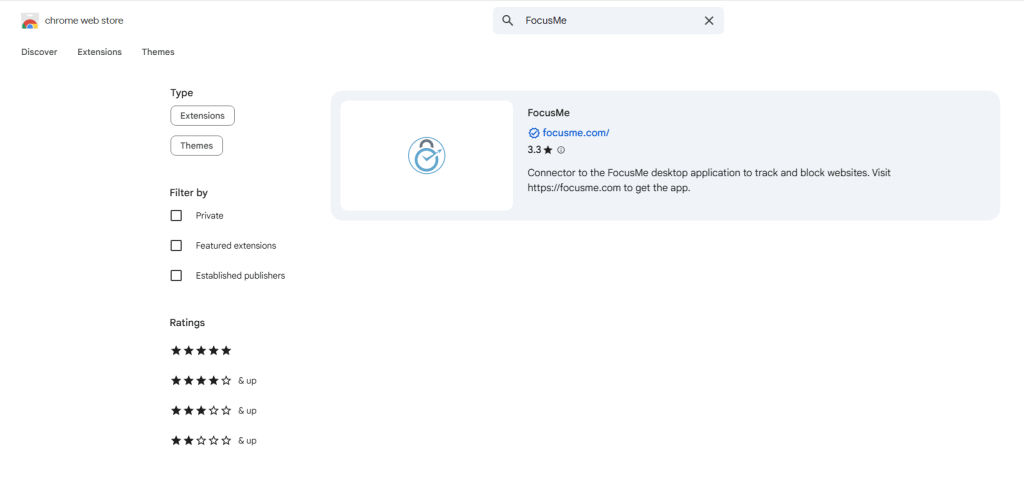
YouTube Shorts and Facebook Reels live inside web pages, and the FocusMe browser addon is what lets FocusMe see the exact page address. The addon is available for Chrome, Edge, Brave, Opera, Vivaldi, Firefox, Zen, LibreWolf and, on Mac, Safari. In FocusMe, open Settings, then Browsers, and click the button for your browser.
Or install it from here, which detects your browser and sends you to the right store:
https://focusme.com/download/addon/
Why this step matters:
- Shorts and Reels are pages inside a site you still want to use
- Blocking all of youtube.com or facebook.com would be too blunt
- The addon lets FocusMe block by page address, so only the Shorts and Reels pages are caught
Without the addon, Shorts and Reels may still slip through.
Quickest route: once the addon is installed, click the FocusMe icon in the browser toolbar and switch on Block YouTube Shorts or Block Facebook Reels in the popup. That blocks them in that browser straight away. The plan in Step 3 does the same thing with a schedule and protection behind it.
Step 3: Create a FocusMe Plan That Blocks Specific URLs
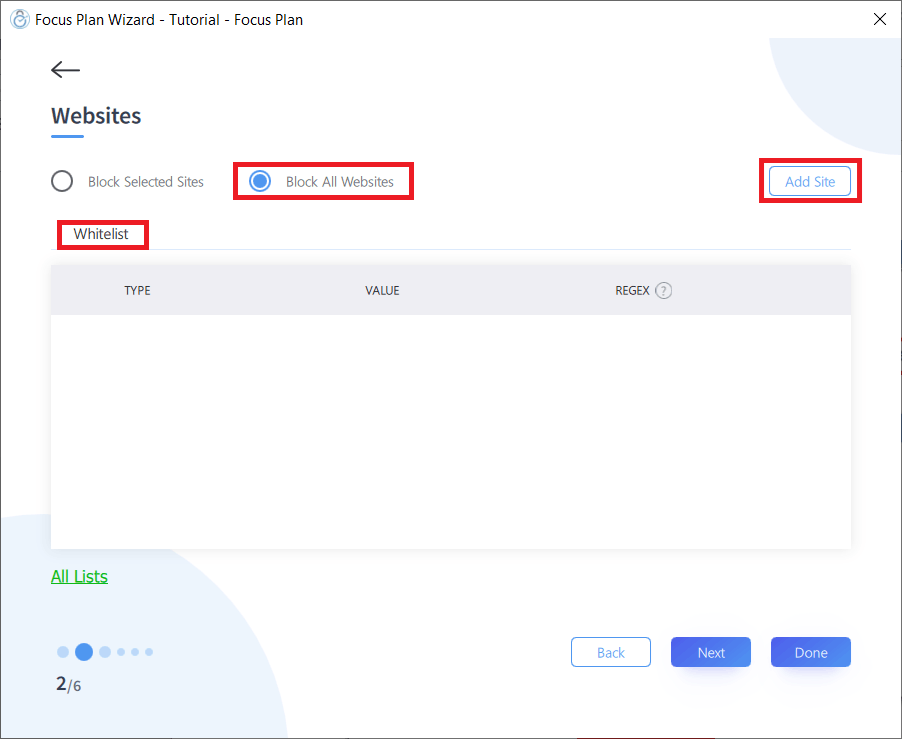
Now comes the key step. In FocusMe, click Add a Plan and name it (or open an existing plan to edit it). On the What to block step, stay on the Websites tab and add these two entries, one at a time:
youtube.com/shorts
facebook.com/reel
What this does:
- Click each new row to open its editor and check that the type is Website address and the match is Contains
- youtube.com/shorts catches the Shorts feed and every individual Short, on m.youtube.com too; ordinary pages such as youtube.com/watch are not affected, because the entry includes the path
- facebook.com/reel catches Facebook Reels the same way
Click Next, choose a schedule, pick a How strict preset, then click Create & Enable. Shorts and Reels won’t load while the plan runs, even if you open them directly.
This is the cleanest way to block YouTube Shorts and Facebook Reels without blocking the full platforms. To block all short-form video in one plan, add instagram.com/reels and tiktok.com as well.
Step 4: Set Addon Verification
This step stops the block being sidestepped by removing the addon.
Go to:
- Settings, then Browsers
Set:
- Addon Verification to Basic, Standard or Strict
Why this matters:
- With it Off, a browser without the addon is never closed, so a blocked page can slip through
- With Basic or higher, a browser running without the addon gets a warning and is then closed
- Standard also covers pages the addon cannot check, such as Incognito windows where it is not allowed; Strict is the maximum-discipline setting
In other words, this keeps the rule in place even if discipline slips. Pick the level before you enable the plan: Addon Verification cannot be lowered while a plan is enabled.
What Happens After Setup?
Once everything is configured:
- YouTube still works, but Shorts won’t load
- Facebook still works, but Reels won’t appear
- Your attention stays intact
- Scrolling loops are removed from your daily routine
This setup is especially useful for:
- Remote workers
- Students
- Creators
- Anyone trying to reduce mindless screen time without quitting platforms completely
Why This Feature Is Different
Most blockers take an all-or-nothing approach. They block entire websites, which often isn’t realistic.
We solve this by letting you block specific attention traps, not useful tools. That’s the difference between restriction and control.
You’re not avoiding YouTube or Facebook. You’re removing the parts designed to hijack your focus.
Final Thoughts
Blocking YouTube Shorts and Facebook Reels isn’t about productivity hacks. It’s about protecting mental space. Short-form video trains the brain to seek constant novelty. FocusMe helps reverse that pattern by removing the trigger altogether.
Once Shorts and Reels are gone, focus feels quieter. Work feels less resistant. And time starts behaving again.
If you’ve tried willpower and it didn’t stick, this feature does the heavy lifting for you.
FAQs (Frequently Asked Questions)
Can I block YouTube Shorts without blocking YouTube completely?
Yes. FocusMe lets you block only the Shorts pages, so regular YouTube videos, search and channels still work.
Will Facebook still function if I block Reels?
Yes. Your feed, messages, and pages remain accessible. Only Reels are blocked.
Why can’t normal website blockers stop Shorts and Reels?
Most blockers work per site: it is all of YouTube or none of it. Shorts and Reels sit inside sites you still need, so you have to block by page address instead.
Do I need the FocusMe browser addon for this to work?
Yes. The addon lets FocusMe see the page address, which is how it tells a Short from a regular video. It is available for Chrome, Edge, Brave, Firefox, Safari on Mac and other browsers.
What happens if the addon is disabled or removed?
With Addon Verification set to Basic or higher, FocusMe warns you and then closes a browser that is running without the addon.
Does this work on both work and personal accounts?
Yes. The blocking applies regardless of which YouTube or Facebook account you’re using.
Will this block Shorts and Reels everywhere or only in the browser?
This setup blocks Shorts and Reels on your computer, in browsers where the FocusMe addon is installed.
Can I schedule when Shorts and Reels are blocked?
Yes. A plan can run on a Weekly Schedule or a timer, so you choose when the block is active.
Does this need the latest version of FocusMe?
It is best to update first: open Settings, then General, and click Check Now under Update. The steps on this page describe FocusMe 8.
Who is this feature best for?
Anyone who needs YouTube or Facebook for work but wants to eliminate endless scrolling loops.