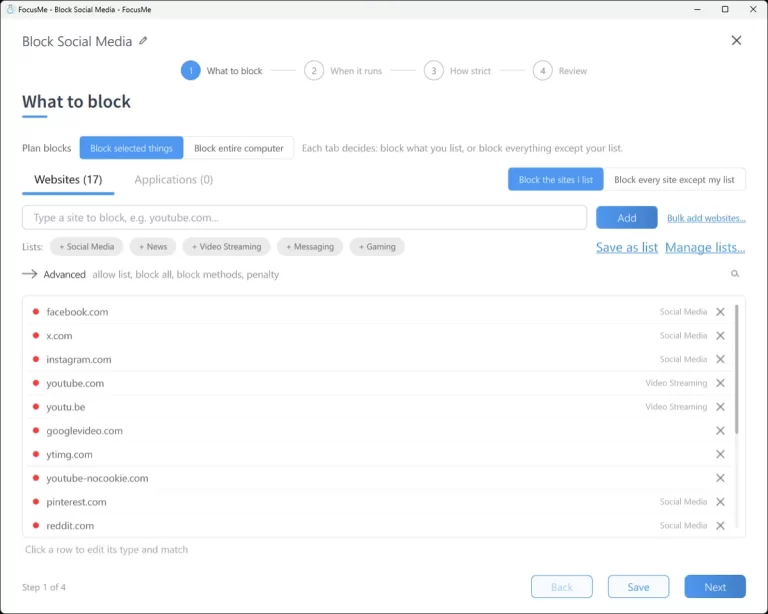
News is the respectable distraction. Nobody feels foolish refreshing a front page the way they do with a feed, which is why it eats the morning. The honest goal is not ignorance; it is one check a day instead of forty. Here are the manual ways to block news sites, what each cannot do, and a FocusMe plan that blocks the lot during work and lets you catch up at lunch.
The manual ways, and where they fall down
The hosts file
On Windows (C:\Windows\System32\drivers\etc\hosts, as administrator) or Mac (/etc/hosts), a line per site sent to 127.0.0.1 stops it loading in every browser on that computer. News is where this breaks down: a useful list runs to dozens of domains and their mobile and AMP variants, it has no schedule, the same edit undoes it, and the next site is one search away.
Browser extensions
A blocker extension with a news list works in one browser, switches off from the extensions page, and is off in private windows unless you allow them. A nudge, not a habit.
Turning off notifications
Worth doing regardless: alerts from news apps are the trigger for most checks. It does nothing about the checks you start yourself.
Screen Time and Digital Wellbeing
App limits on a news app, in iPhone Screen Time or Android’s Digital Wellbeing, run on a passcode you set and an “ignore limit” button. They cover the app, not the fifty sites in the browser.
Block news sites with FocusMe
FocusMe blocks websites and apps on Windows, Mac and Linux, and on Android and iPhone, and it has a ready-made news list, which is what makes this quick.
Load the News list
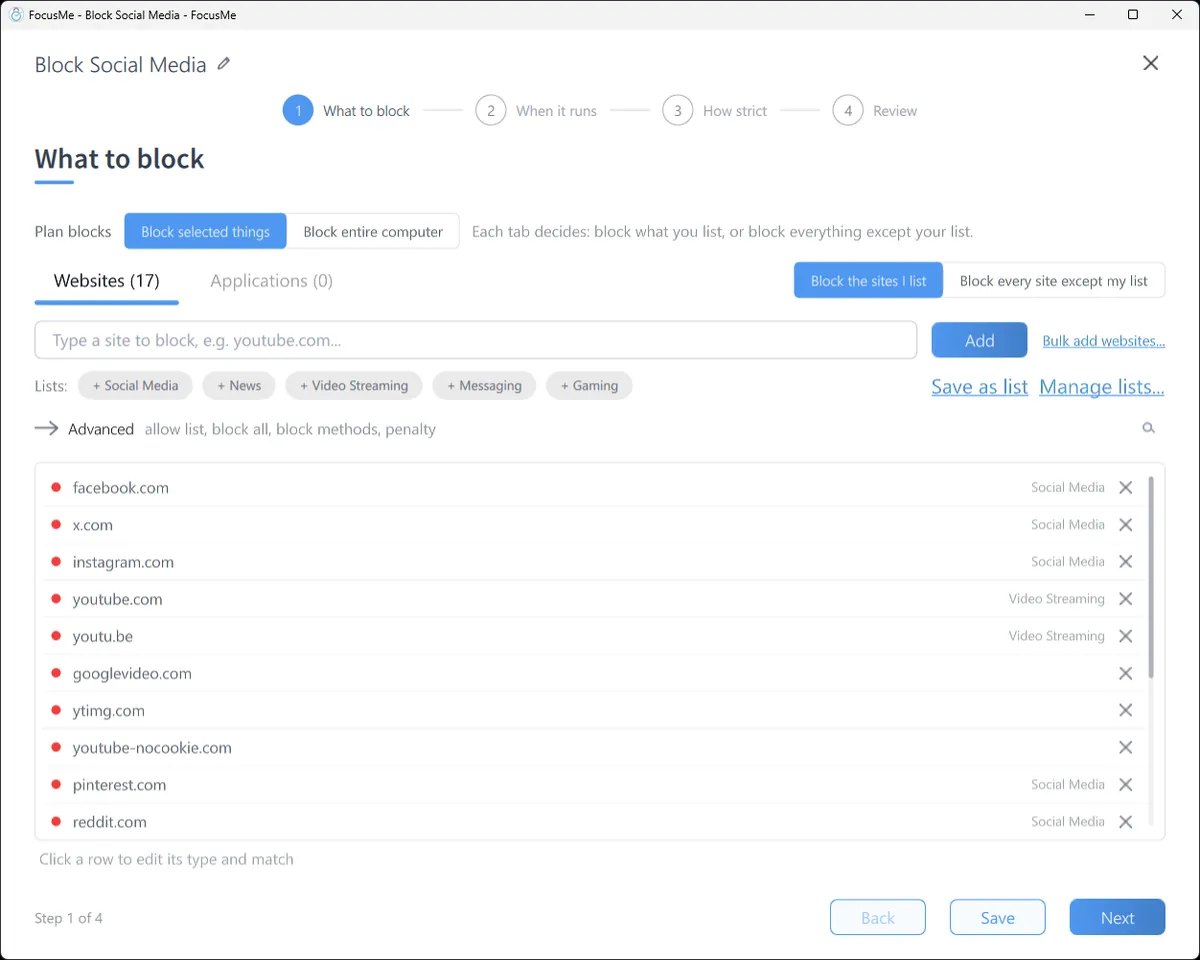
Click Add a Plan, and on What to block click the News chip in the Lists row. The major news sites load into the block list in one go. Add the ones you actually read (bbc.co.uk/news, theguardian.com, your local paper) and remove any you need for work. Entries cover subdomains, so bbc.co.uk/news blocks the news section and leaves the rest of the site open.
Catch the ones you did not list
Add news as a second entry and set its type to Address or page title. Any page with “news” in its address or title is blocked, which catches aggregators, apps’ web versions and the site you found last week. If it catches something you need, switch its match to Whole Word or put that site on the allow list.
One check a day
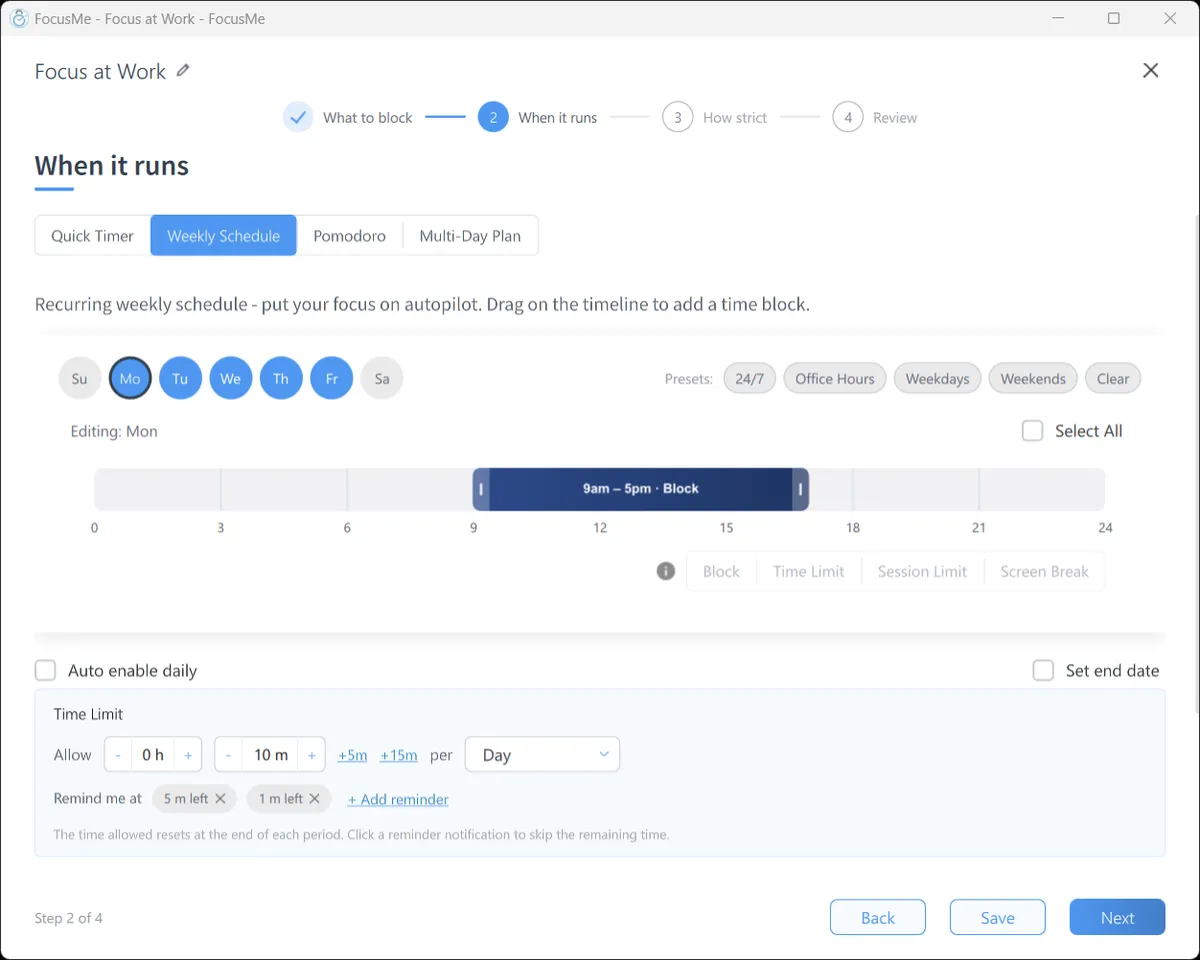
On When it runs, choose Weekly Schedule, block 9 to 1 and 2 to 5 on weekdays, and leave the lunch hour open. Or keep the block all day and set the lunch interval to a Time Limit of 15 minutes: FocusMe counts the time you actually spend reading and blocks the sites when it is spent. Each interval on the timeline has its own mode.
The news apps
On Windows and Mac, add the news apps you use on the Applications tab by name. On Android, pick the apps and add the sites; the block holds in Chrome, Samsung Internet, Firefox and the rest. On iPhone, pick the News category in one tap, and iOS Screen Time enforces the plan so it keeps working when FocusMe is closed.
Make it stick
Give it a schedule. A plan that starts at 9 by itself means the first check of the day is at lunch, not before coffee. You decided once.
Pick how strict. Gentle Guidance asks for five random characters before a plan stops: a decision, not a reflex. Firm but Flexible adds a wait and three pauses a day, which suits news well: a genuine reason to check is a pause, not a stop. Lock it Down means 25 characters typed perfectly and a ten-minute wait, no pauses.

Or commit. Enforced Mode means the plan runs to its end and can only be made stricter while it runs. A lunch-hour gap in the schedule is the sensible companion: the news is still there at one o’clock, and nothing in it needed you at ten.
Frequently asked questions
Can I block all news sites without listing them one by one?
Mostly. The News list chip loads the major sites, and an “Address or page title” entry for news catches most of the rest. Add the specific sites you read to be sure.
Can I allow one site I need for work?
Yes. Put it on the allow list, which always takes priority over the block list.
Can I block news only in the morning?
Yes. Draw the hours on the weekly schedule. Each interval can block, allow a time limit, or allow a number of short sessions.
Does it work in every browser?
Yes. A FocusMe plan applies to every browser on the computer, private windows included, and to every browser on an Android phone.
Related: The FocusMe website blocker, FocusMe for developers, To live a great life, live offline.