Prefer to read offline? Download this article as a PDF
Have you ever opened your email to send one quick message, only to spend the next 20 minutes reading new emails? You might find a work request, open a newsletter, reply to an old message and start checking other emails before returning to your original task. If this sounds familiar, learning how to block your Gmail inbox while keeping the ability to send emails can help you reduce distractions and stay focused on your work.
Email is important for most jobs, but checking it throughout the day can interrupt your work. Every new message can feel like something that needs attention, even when it can wait.
Completely blocking email is not always a good solution. You may still need to send an update, reply to a client or share a file with a coworker. What if you could stop opening your inbox while keeping the option to send messages?
FocusMe can do exactly that: block Gmail during your work hours while keeping its compose page open, so you can send without seeing what has arrived.
Short version
FocusMe blocks Gmail Inbox on your computer and phone on the schedule you set.
Try it free for 14 daysHere is how to approach this setup.
Why Block Your Inbox but Keep Email Sending Available?
The main problem with email is not always sending messages. It is the habit of checking for new ones.
You might open your inbox whenever you finish a task, get stuck on a difficult problem, or see a notification. Even when no urgent message arrives, you may start reading old conversations or sorting newsletters.
This can make it harder to finish important work. Instead of checking email at planned times, you keep switching between your main task and your inbox.
Blocking the inbox while allowing email composition creates a useful boundary. You can still send a message when work requires it, but opening your inbox to browse new messages is no longer the default option.
This setup can be helpful for writers, developers, students, office workers and anyone who needs to send emails without constantly checking for new ones.
How to Block Gmail Inbox but Still Send Emails with FocusMe
The trick is to block all of Gmail, then allow one page: Gmail’s standalone compose window. It has its own address, separate from the inbox, so FocusMe can keep it open while everything else in Gmail stays blocked. This works for Gmail in a browser; a desktop mail app such as Outlook can only be blocked or allowed as a whole.
Step 1: Create a New FocusMe Plan
- Open FocusMe and click Add a Plan.
- Give the plan a name you will recognize, such as “Inbox off”.
Step 2: Block Gmail
- On the What to block step, with Blocked selected, add
mail.google.com.
This blocks the whole of Gmail, inbox included. The next step opens a single door back in for sending.
Step 3: Allow the Gmail Compose Page
- Switch to Allowed and add
mail.google.com/mail/?view=cm. - Click the new allow row and set its match to Starts With.
- Bookmark
https://mail.google.com/mail/?view=cm&fs=1&tf=1in your browser. It opens Gmail’s compose window on its own, without loading your inbox.
The allow list always takes priority over the block list, so the compose page stays open while the rest of Gmail is blocked. Always start a new email from the bookmark: composing from inside the inbox will not work, because that view shares the inbox’s address and stays blocked. This setup needs the FocusMe browser extension, which you can add from the Browsers panel in FocusMe’s Settings.
Step 4: Set Your Blocking Schedule
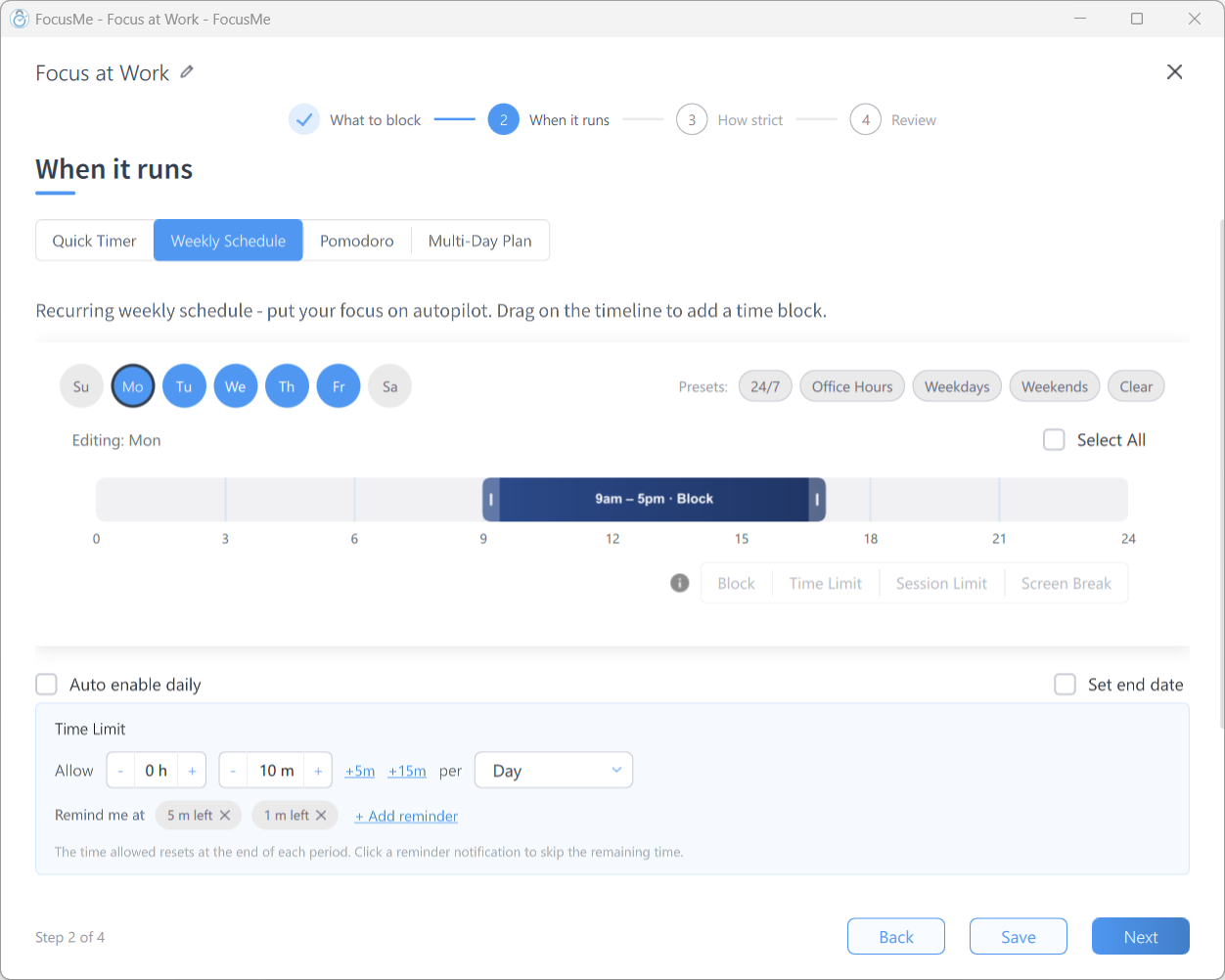
On the When it runs step, choose Weekly Schedule and drag on the timeline to set your working hours, or pick the Office Hours preset. You could leave short gaps, say at 9 a.m., noon and 4 p.m., when your inbox opens and you can read and reply in one batch.
Then choose how strict the plan should be on the How strict step and click Create & Enable.
Step 5: Test the Plan Before Using It
Before relying on the setup, check each of the following:
- Gmail’s inbox is blocked while the plan is active.
- Your compose bookmark opens.
- You can write and send a test email from it.
- The plan starts and stops at the times you selected.
If the compose page is blocked too, check that the FocusMe browser extension is installed in the browser you use and that the allow row is set to Starts With. Gmail can change how its compose page is addressed; if sending stops working, contact FocusMe support.
For more information about website-blocking features, visit the FocusMe Website Blocker page.
Final Thoughts
Email is necessary for many jobs, but constant inbox checking can take attention away from more important tasks. Blocking inbox access while keeping the compose page available offers a practical middle ground for people who need to send messages without repeatedly checking for new ones.
FocusMe’s block list and allow list make this kind of rule possible. Test the setup once before you rely on it for important work.
Start with a schedule that fits your responsibilities, confirm that sending still works and adjust the rules until they support the way you work.
Block Gmail Inbox with FocusMe
Block Gmail Inbox on every device, in one plan
Websites and apps on Windows, Mac, Linux, Android and iPhone. Schedules, time limits, and protection that holds until the time you set.
Start your free 14-day trialNo credit card needed. How the website blocker works
Frequently Asked Questions
Can FocusMe block my Gmail inbox but still let me send emails?
Yes. Block mail.google.com and add mail.google.com/mail/?view=cm to the allow list with a Starts With match. Gmail is blocked, but its standalone compose page stays open.
Will this setup work with Outlook or other email services?
Outlook on the web works the same way: block outlook.live.com (personal) or outlook.office.com (work), and allow outlook.live.com/mail/compose or outlook.office.com/mail/compose with a Starts With match. The Outlook desktop app can only be blocked or allowed as a whole.
Can I block my inbox only during working hours?
FocusMe supports scheduled website-blocking plans. You can choose times that fit your work routine and adjust the schedule when your responsibilities change.
What if Gmail still opens my inbox after I create the plan?
Check that the plan is running, that the FocusMe browser extension is installed in that browser, and that you blocked mail.google.com itself rather than one inbox address.
Can I send email attachments while my inbox is blocked?
Usually, yes: the compose window has its own attach button. Send yourself a test email with an attachment from your compose bookmark before relying on the setup.
Want to talk it through? Join the FocusMe community