Nobody wants Netflix gone. They want it gone between nine and five, or after midnight, or until the essay is in. That is a different problem from blocking a site, and it is why the usual tricks, a profile PIN or a line in the hosts file, do not survive the second evening. Here are the manual ways to block Netflix, what each cannot do, and a FocusMe plan that blocks it on a schedule and holds.
The manual ways, and where they fall down
Netflix profile locks
Netflix lets you put a PIN on a profile. It is made for keeping children off your profile, and for that it works. For keeping yourself off it, it is a four-digit number you chose, typed by you. The maturity rating settings in the same place limit what plays, not whether it plays.
The hosts file
On Windows (C:\Windows\System32\drivers\etc\hosts, as administrator) or Mac (/etc/hosts), a line sending netflix.com and www.netflix.com to 127.0.0.1 stops the site loading in every browser on that computer. It needs administrator rights, it has no schedule, the same edit undoes it, it does not touch the Netflix app from the Microsoft Store or the Mac App Store, and it does nothing on the phone or the TV.
Screen Time and Digital Wellbeing
An app limit on Netflix, in iPhone Screen Time or Android’s Digital Wellbeing, runs on a passcode you set and an “ignore limit” button. On a child’s phone with a parent holding the passcode it is a fair start. On your own it holds while you want it to.
Cancelling
Cancelling does work, and if Netflix has no place in your life it is the right answer. If what you want is an evening film and no afternoon episodes, it is a blunt one.
Block Netflix with FocusMe
FocusMe blocks websites and apps on Windows, Mac and Linux, and on Android and iPhone, on a schedule you set once. One plan can cover the website, the desktop app and the phone app.
The website
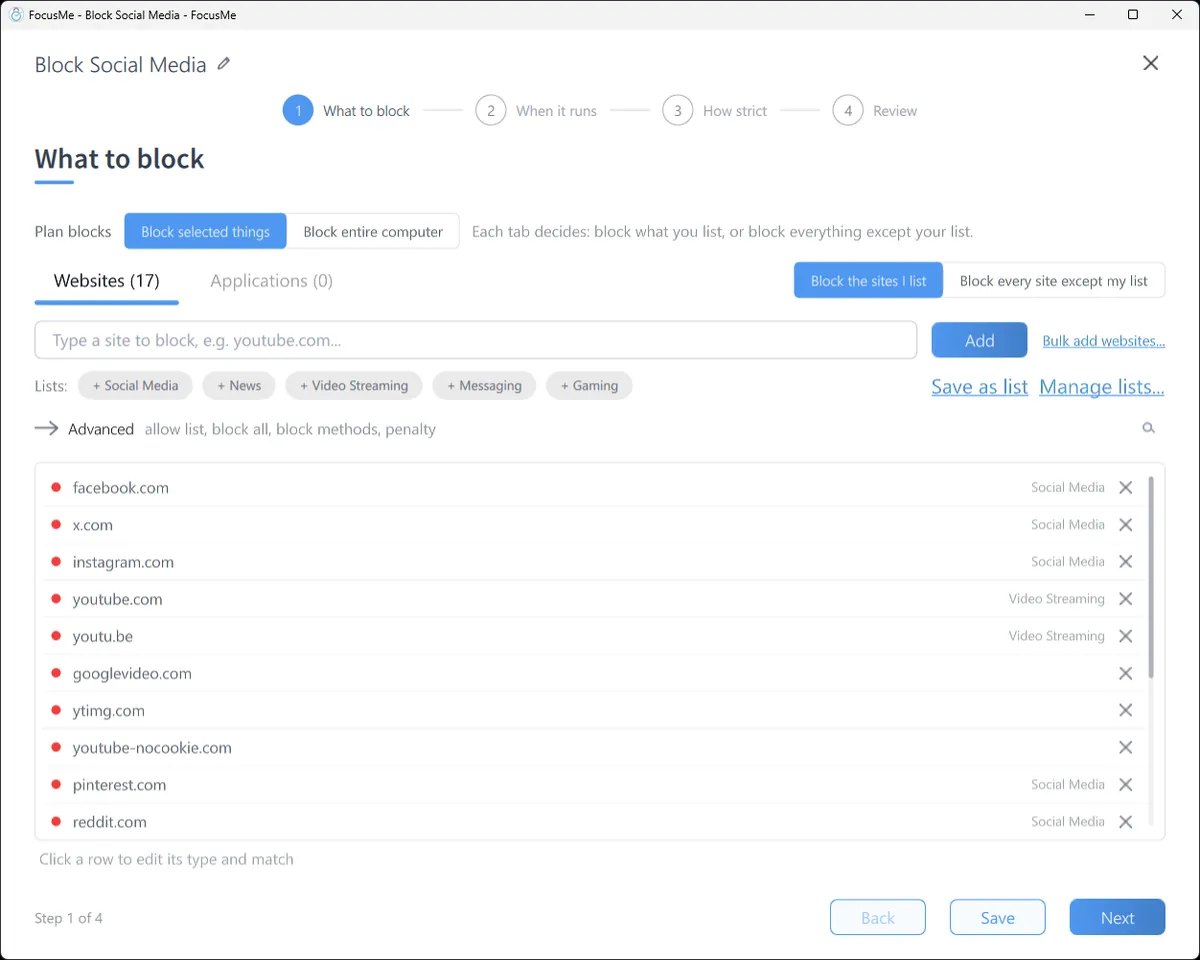
On What to block, type netflix.com and click Add. FocusMe has a ready-made Video Streaming list too: click its chip to load Netflix, YouTube, Disney+, Prime Video and the rest in one go, and remove any you want to keep.
The Netflix app on Windows or Mac
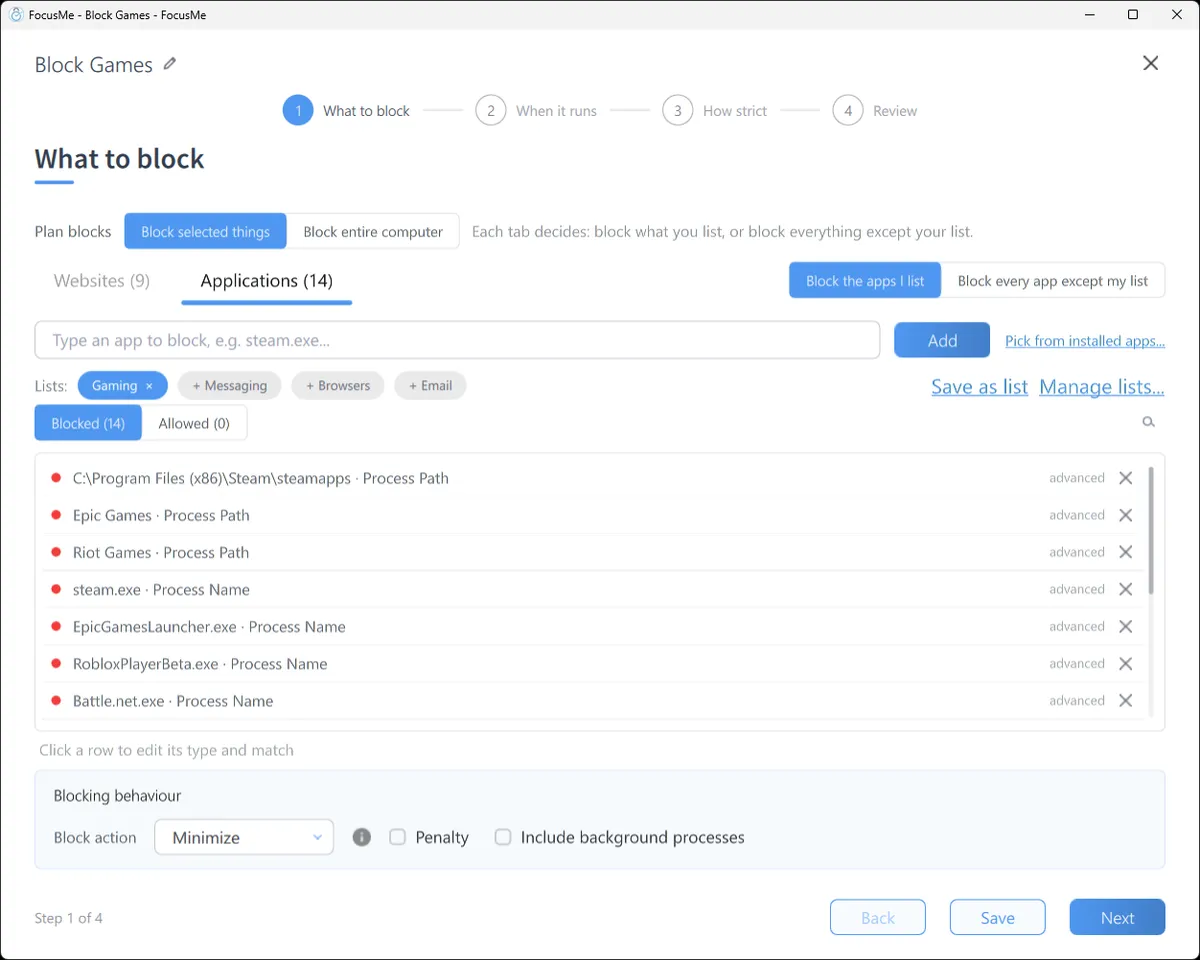
Switch to the Applications tab and type Netflix; it is added by application name. On Windows, where the app comes from the Microsoft Store, the surest route is to open Netflix, click Pick from installed apps and choose it on the Open Windows tab. A blocked app is closed or minimised the moment it opens, with a message that says which plan did it.
The schedule
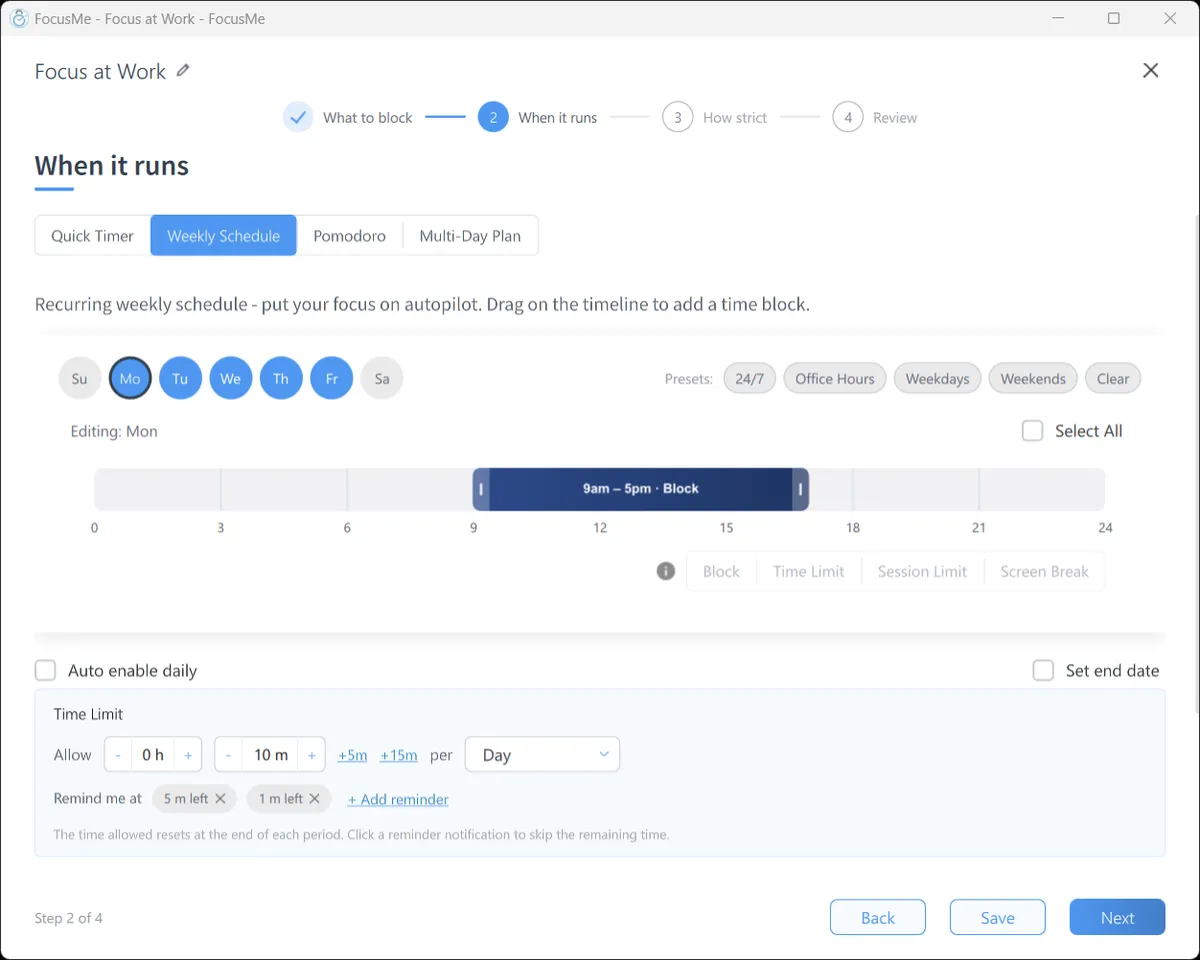
On When it runs, choose Weekly Schedule and drag the hours you want Netflix gone: 9 to 5 on weekdays for work, or 11pm to 7am every day for sleep. Each interval can have its own mode, so the plan can block in the afternoon and allow a one-hour Time Limit in the evening. Exam week? A Multi-Day Plan runs a different timetable each day and advances by itself.
On your phone
On Android, pick the Netflix app and add netflix.com as a website. On iPhone, pick the Netflix app or the whole Entertainment category in one tap; iOS Screen Time enforces the plan, so it keeps working when FocusMe is closed. Sign in on both and the plan you made on your computer runs on your phone too.
Make it stick
Let the schedule decide. A plan that runs by itself removes the nightly negotiation. You chose the hours once, in daylight.
Pick how strict. Gentle Guidance asks for five random characters before a plan stops: a decision, not a reflex. Firm but Flexible adds a wait and three pauses a day, which is the right setting for most streaming plans: the pause is there for the night you genuinely want the film. Lock it Down means 25 characters typed perfectly and a ten-minute wait, no pauses.

Or commit. Enforced Mode means the plan runs to its end and can only be made stricter while it runs. For a bedtime plan, a Block entire computer plan goes further than Netflix: from 11pm the screen locks, and the decision about one more episode is already made.
Frequently asked questions
Can I block Netflix only during work hours?
Yes. Draw the hours on the weekly schedule and the plan starts and stops by itself. Evenings and weekends stay open unless you add them.
Does it block the Netflix app, not just the website?
Yes. Add the app on the Applications tab of the same plan; on Windows pick it from the Open Windows tab while it is running. On the phone, pick the app from the list.
Can I allow one hour a day instead?
Yes. Set the interval’s mode to Time Limit and allow 60 minutes. FocusMe counts the time you actually watch and blocks the site when the budget is spent, until the next day.
What about the TV?
FocusMe runs on computers and phones, not on a TV. For the TV, Netflix’s profile lock or unplugging it at the wall are the honest options.
Related: Stop binge-watching, Stop scrolling at night, FocusMe for students.