Prefer to read offline? Download this article as a PDF
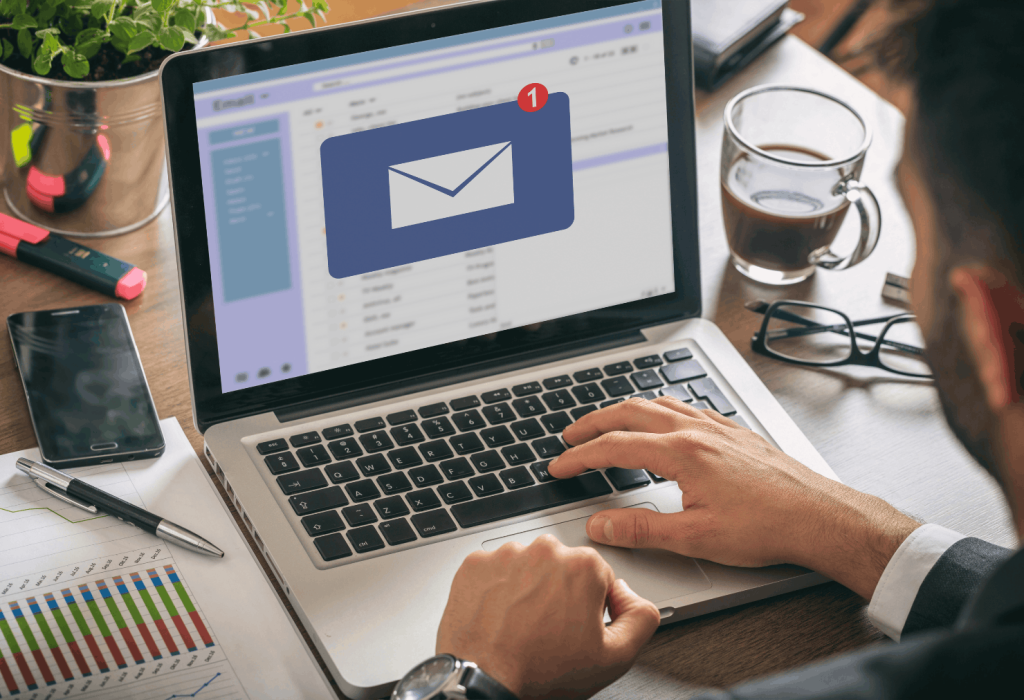
Have you ever opened your email to send one quick message, only to spend the next 20 minutes reading new emails? You might find a work request, open a newsletter, reply to an old message and start checking other emails before returning to your original task. If this sounds familiar, learning how to block your Gmail inbox while keeping the ability to send emails can help you reduce distractions and stay focused on your work.
Email is important for most jobs, but checking it throughout the day can interrupt your work. Every new message can feel like something that needs attention, even when it can wait.
Completely blocking email is not always a good solution. You may still need to send an update, reply to a client or share a file with a coworker. What if you could stop opening your inbox while keeping the option to send messages?
FocusMe lets users block specific website pages while keeping selected pages accessible. For example, Gmail users can set up a rule to block inbox access while allowing the compose page to remain available.
Here is how to approach this setup.
Why Block Your Inbox but Keep Email Sending Available?
The main problem with email is not always sending messages. It is the habit of checking for new ones.
You might open your inbox whenever you finish a task, get stuck on a difficult problem, or see a notification. Even when no urgent message arrives, you may start reading old conversations or sorting newsletters.
This can make it harder to finish important work. Instead of checking email at planned times, you keep switching between your main task and your inbox.
Blocking the inbox while allowing email composition creates a useful boundary. You can still send a message when work requires it, but opening your inbox to browse new messages is no longer the default option.
This setup can be helpful for writers, developers, students, office workers and anyone who needs to send emails without constantly checking for new ones.
How to Block Gmail Inbox but Still Send Emails with FocusMe
FocusMe allows users to block distracting websites and set rules for specific URLs. To try blocking Gmail’s inbox while keeping the compose page available, follow these steps.

Step 1: Create a New FocusMe Plan
- Open the FocusMe desktop app.
- Create a new plan.
- Go to the section where you choose which websites to block.
- Select the option that lets you block selected websites rather than blocking all websites.
The names of the options may vary depending on your FocusMe version.
Step 2: Add the Gmail Inbox to the Block List
- Open Gmail in your browser and go to your inbox.
- Copy the inbox URL from your browser’s address bar.
- Return to FocusMe and add that URL to the website block list.
- If FocusMe offers URL matching options, choose the one that matches the inbox page without blocking the entire Gmail website.
Your URL may be different depending on your Gmail account and browser. Use the URL shown in your own browser and test the rule to make sure it blocks the inbox without blocking other Gmail pages.
Step 3: Allow the Gmail Compose Page
Next, try to keep the email compose page accessible.
- Open Gmail’s compose window.
- Copy the URL shown in your browser’s address bar.
- Return to FocusMe and check whether your plan supports a whitelist or an allow rule for specific URLs.
- Add the compose page URL to the appropriate list, following the matching rules available in your version of FocusMe.
If Gmail changes the URL or the rule also blocks the compose page, adjust the rule or contact FocusMe support for help.
Step 4: Set Your Blocking Schedule
Choose when the plan should run. For example, you could schedule it during your regular work hours so you can focus on tasks without repeatedly checking new messages.
Review the schedule and any protection settings before activating the plan.
Step 5: Test the Plan Before Using It
Before relying on the setup, check each of the following:
- The Gmail inbox is blocked while the plan is active.
- The compose page remains accessible.
- You can write and send a test email.
- Opening links or navigating back to the inbox does not bypass the block.
- The plan starts and stops at the times you selected.
If the inbox and compose page cannot be controlled separately in your current setup, do not assume the configuration is working.
Check the URL-matching options or contact FocusMe support.
For more information about website-blocking features, visit the FocusMe Website Blocker page.
Final Thoughts
Email is necessary for many jobs, but constant inbox checking can take attention away from more important tasks. Blocking inbox access while keeping the compose page available offers a practical middle ground for people who need to send messages without repeatedly checking for new ones.
FocusMe’s blacklist and whitelist options can help users create this type of rule. Because Gmail’s page addresses and behavior can vary, test the settings carefully before using them for important work.
Start with a schedule that fits your responsibilities, confirm that sending still works and adjust the rules until they support the way you work.
Frequently Asked Questions
Can FocusMe block my Gmail inbox but still let me send emails?
FocusMe supports blocking selected website pages while allowing specific pages through whitelist exceptions. A Gmail setup may allow inbox access to be blocked while the compose page remains accessible, provided the URL rules match correctly.
Will this setup work with Outlook or other email services?
The same general approach may work with other webmail services, but their URL patterns and page behavior can differ. Identify the inbox and compose-page URLs for your email provider and test the rules before relying on them.
Can I block my inbox only during working hours?
FocusMe supports scheduled website-blocking plans. You can choose times that fit your work routine and adjust the schedule when your responsibilities change.
What if Gmail still opens my inbox after I create the plan?
Check the URL entered in the blacklist and review the matching settings. Gmail may use different URLs for different pages. Test the inbox and compose page separately, then adjust the rules if needed.
Can I send email attachments while my inbox is blocked?
This depends on how the blocking rules match Gmail’s pages and functions. Test the compose page by creating a message, attaching a file, and sending it before relying on the setup.