Prefer to read offline? Download this article as a PDF
You open YouTube to watch a tutorial, learn something new or find an answer to a question. Then you notice a Short. You watch it, swipe to the next one and keep going. Before you realize it, the time you planned to spend working or studying is gone. If you want to block YouTube Shorts without losing access to regular videos, FocusMe can help you limit this distraction and stay focused on what matters.
YouTube Shorts can make it easy to lose track of time because new videos appear one after another. The problem is that you may still need regular YouTube for useful content. Blocking the entire website can feel too restrictive when you use it for work, school or personal projects.
The good news is that you do not have to block all of YouTube to reduce this distraction. With FocusMe, you can block the YouTube Shorts section while keeping regular videos, search pages and channels accessible.
Here is how to set it up and make it easier to stay focused.
Why Block YouTube Shorts Instead of All of YouTube?
YouTube can be useful for many reasons. You might watch a lesson, follow a software tutorial, learn a new skill or listen to an educational video. Blocking the entire website could make these activities harder.
Shorts are different because they encourage quick viewing and continuous scrolling. You may plan to watch one video during a break. But another clip appears as soon as the first one ends.
This can become a habit. Whenever a task feels difficult or boring, you may open Shorts without thinking. Even if each visit is short, repeated visits can interrupt your work and make it harder to finish important tasks.
Blocking Shorts gives you a middle option. You can keep the parts of YouTube that help you while limiting the section that often takes you away from your priorities.
How to Block YouTube Shorts with FocusMe
FocusMe lets you block specific website addresses instead of blocking an entire website. This means you can target YouTube Shorts while leaving regular YouTube pages available.
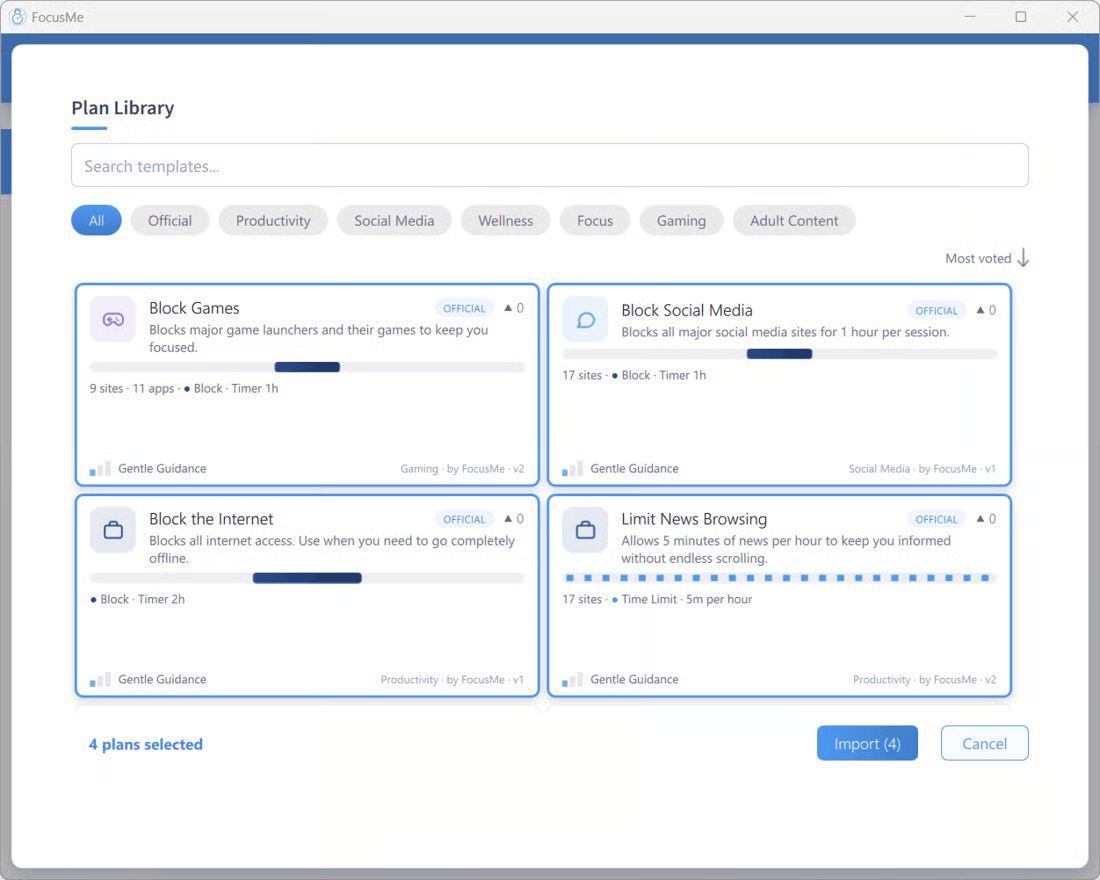
There are two ways to do this. You can use the FocusMe browser add-on for a quick setup or create a plan for more control over when the block applies.
1. Use the FocusMe Browser Add-On
If you want to block YouTube Shorts quickly, the browser add-on is a simple place to start.
- Open your browser and find the FocusMe add-on icon in the toolbar.
- Click the icon to open its menu.
- Find and tick the Block YouTube Shorts option.
This is the quickest route described in FocusMe’s official guide. If you want to schedule the block or protect it as part of a plan, use the next method.
2. Create a FocusMe Plan
A FocusMe plan gives you more control over your blocking rules and schedule.
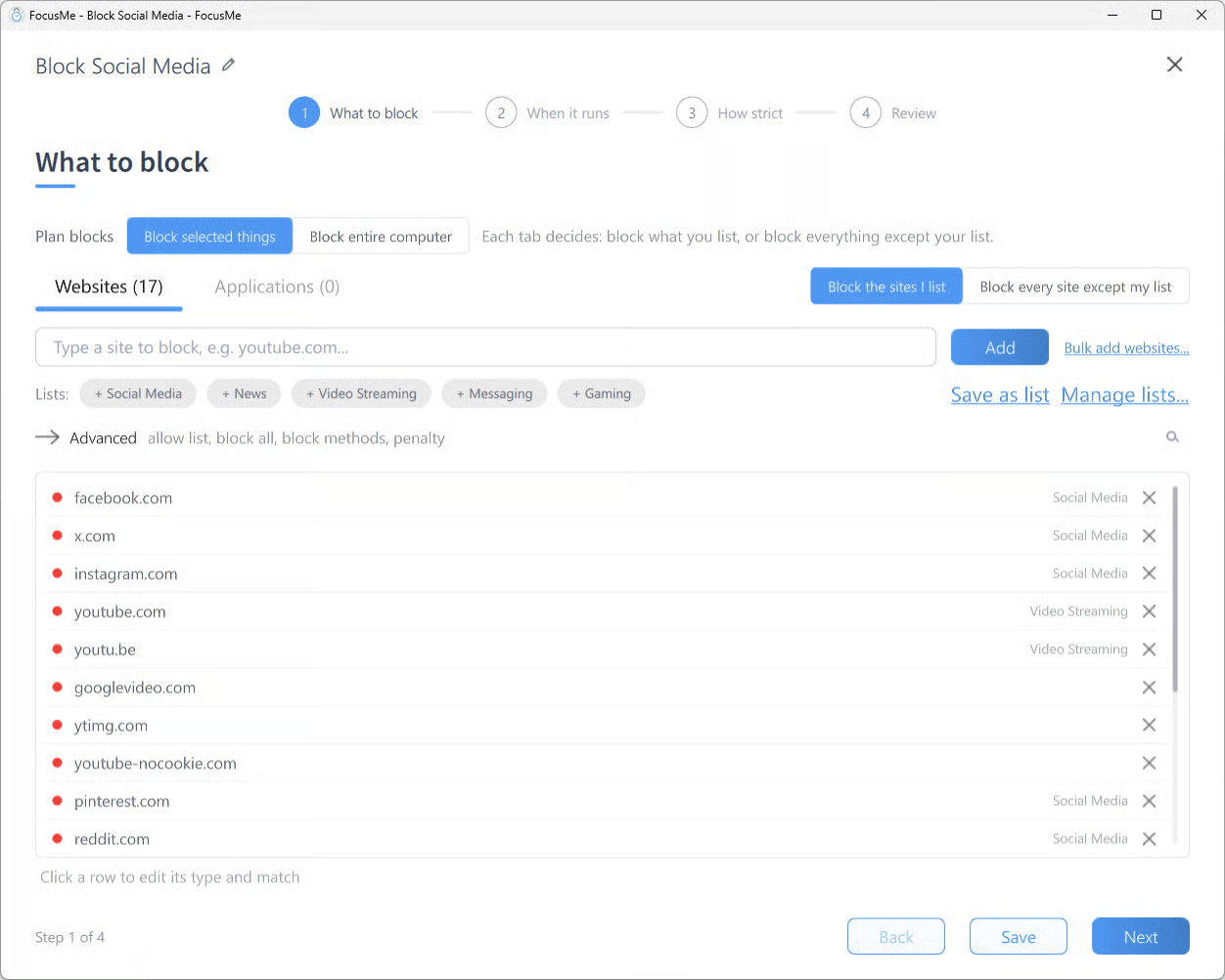
Step 1: Create a new plan
Open FocusMe and click Add a Plan. Give the plan a name that explains its purpose, such as “Block YouTube Shorts During Work.”
Step 2: Add the YouTube Shorts address
On the What to block screen, open the Websites tab. Enter this address in the add row:
youtube.com/shorts
Click Add to include it in your blocking list.
Step 3: Check the matching settings
Click the new entry to open its inline editor. Make sure the type is set to URL and the match option is set to Contains.
This setting is important. It allows FocusMe to match the Shorts address and individual Shorts pages.
Regular video pages use a different address pattern. So they are not affected by this specific URL rule.
Step 4: Choose your schedule
Click Next and choose when the block should apply. For example, you could schedule it during your usual working or study hours.
Choose a suitable How strict preset, then review the plan and click Create & Enable.
Your plan is now set up to block the specified Shorts URLs according to the schedule and strictness you selected.
What If Shorts Appear on the YouTube Home Page?
Blocking YouTube Shorts targets Shorts pages, but YouTube may also show Shorts on its home page or in search results.
FocusMe’s guide describes an additional option for catching pages with “Shorts” in the page title. To use it, add another entry to your plan, enter Shorts and change the entry type to Keyword.
Keep in mind that keyword matching is broader. It can block any tab whose page address or title contains the word “Shorts”. If that word appears in a page you need, the rule could block it too. If you want to avoid that possibility, start with the URL rule alone.
Test your settings after creating the plan. Open a regular YouTube video and a Shorts page to check whether the results match what you intended.
Choose When You Want to Block Shorts
You do not necessarily need to block Shorts all day. The best schedule depends on how you use YouTube.
For example, you could:
- During work: Block Shorts while writing, studying or completing important tasks.
- During study time: Keep regular educational videos available but block Shorts pages.
- During planned breaks: Decide in advance whether you want to use YouTube or take a break away from your screen.
- Outside work hours: Adjust your schedule to suit your personal routine.
The goal is to create a rule that supports your priorities without making useful activities unnecessarily difficult.
If you need YouTube for work, test the plan with the videos and channels you regularly use. That way, you can identify any blocking rule that is too broad before relying on it for an important task.
Keep the Useful Parts of YouTube
You do not have to give up YouTube to protect your time. You can still watch tutorials, educational videos and other content you choose while limiting access to the Shorts feed.
FocusMe helps you set that boundary by targeting specific website addresses and scheduling when the rule applies. Start with the URL rule, check that regular video pages remain accessible and adjust your settings if you need broader blocking.
Small changes like this can make it easier to use the internet with a purpose instead of following every distraction that appears.