

How FocusMe for Schools works
Three parts work together: your school’s dashboard, FocusMe on each student PC, and FocusMe for Families for parents and guardians.
The school dashboard
Your staff manage everything from a web dashboard.
- Classes and students. Put students into classes, and show each one by name or by a code.
- Rules for each class. Block lists, allow only lists, app blocking, schedules and time limits.
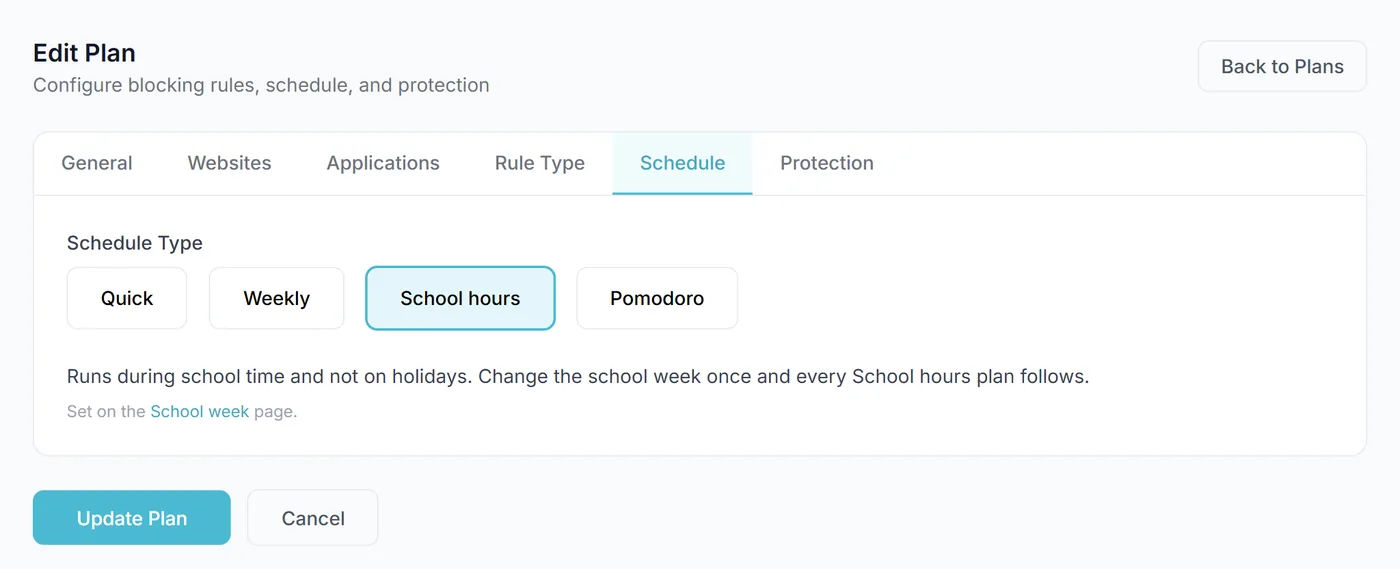
- School week. Set your school’s hours for each day, with up to two blocks a day, so a lunch break at home counts as home time.
- Holidays. Add holiday dates or import your school calendar file. On those days school rules step aside.
- Staff and roles. Each member of staff gets the access their role needs, from full control to view only, and every sign-in is logged.
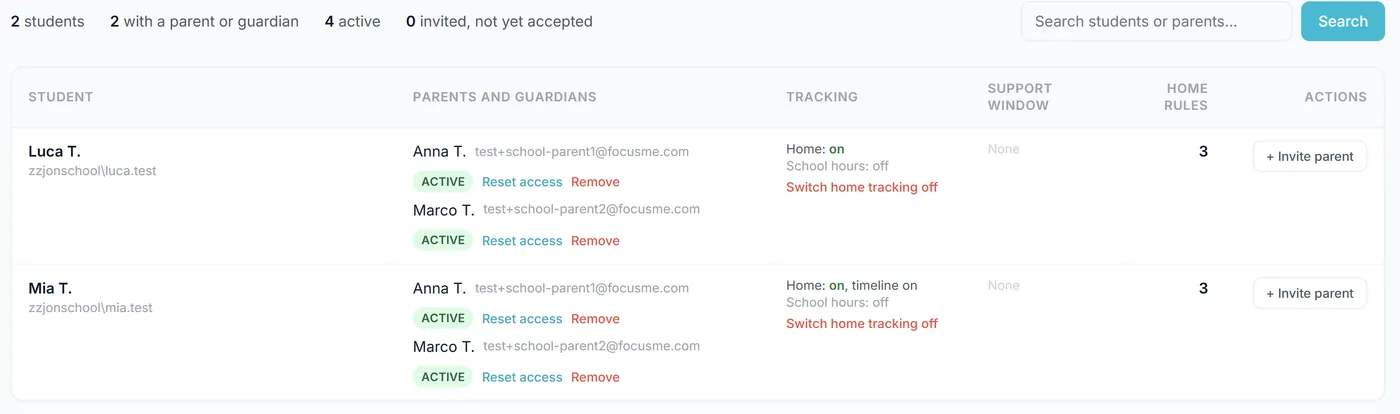
- Families. See for each student whether their parents or guardians are invited or active and how many home rules they have, and invite them one at a time or from a list.
When which rules apply
School dayMon-Fri, hours the school sets
Holiday or weekendfrom the school calendar
- School rules: set in the school dashboard
- Home rules: set by a parent or guardian in FocusMe for Families, if the school invites them
On each student PC
- Your IT team installs FocusMe with your school’s enrollment code, and the PC joins your school.
- Students are recognized by the account they sign in to Windows with, such as their school Microsoft 365 account. Nobody types a FocusMe password.
- The FocusMe for Schools browser extension is installed by policy in Chrome and Edge.
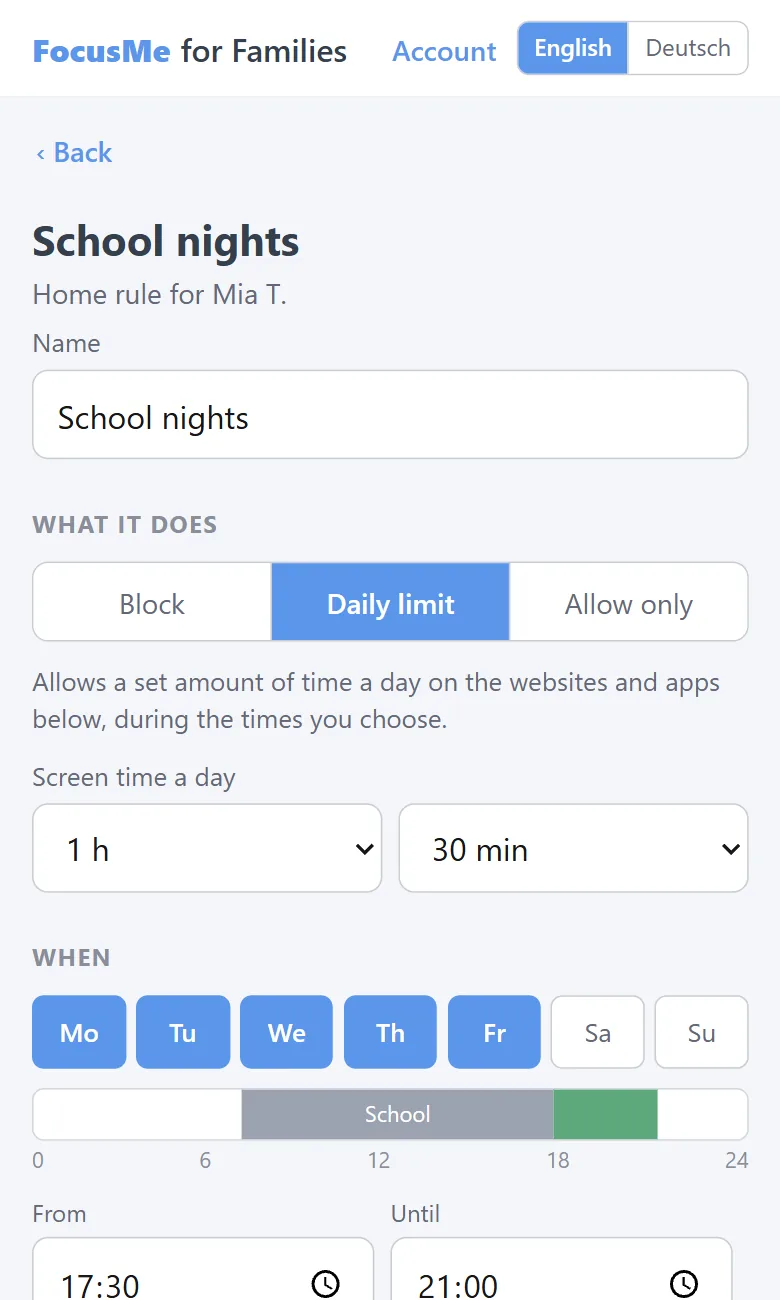
- During school hours the school’s rules apply. Outside school hours, any home rules a parent or guardian has set apply.
- Rules are managed from the dashboard, and students cannot change the school’s rules on the PC.
- While home activity is on, the PC shows a notice saying so.
FocusMe for Families
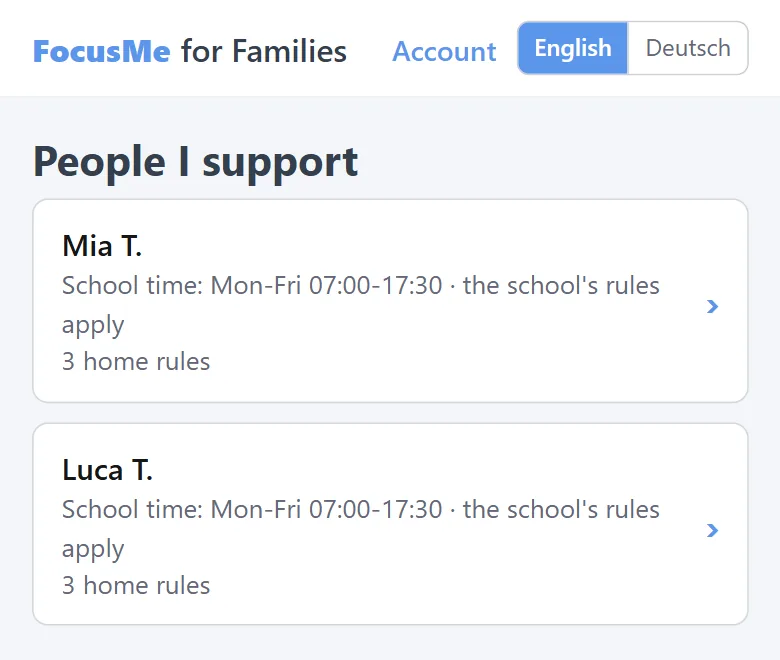
Parents and guardians your school invites use FocusMe for Families on the web, from any phone or computer, in English or German.
- Home rules. Block apps and websites, set a daily limit, or allow only chosen sites, on the days and times they pick outside school hours, and all day on holidays.
- Activity, if they want it. Daily totals for each app and website, screen time and blocked attempts. A timeline of the day is there too, only if they switch it on.
- Sealed. Activity is encrypted on the PC, and only the parent or guardian can read it, with their own key and a recovery code only they hold.
- A weekly email, if they want one. It carries only a link, never activity.
- More than one parent or guardian. Each one is invited and signs in separately.
Getting started
Talk to us
Tell us about your school, your PCs and what you want to achieve.
Sign the data processing agreement
Your school is the controller of student data and we are the processor. The agreement sets out exactly what we hold and why.
Send your details
Student Windows accounts, the name or code to show for each, and, if you want home rules, parent or guardian emails.
Install and go
We set up your dashboard, your IT team installs FocusMe on each PC, and parents and guardians get their invitations.
Every school can start with a free pilot of up to 5 students for 60 days.
Talk to us for a price for your school.
Start a free pilot